Katalon
Level: Intermediate
Keywords: automatic test, Katalon, e2e
The result: automatic tests in Katalon
How to create an automatic tests in Katalon?
Here, you can find simple documentation, guidelines, as well as tips and tricks to help you start a successful test automation journey.
Official site: https://www.katalon.com/.
Full documentation: https://docs.katalon.com/katalon-studio/docs/index.html.
Register/Sing up:
Create a free account/download Katalon: https://www.katalon.com/sign-up/.
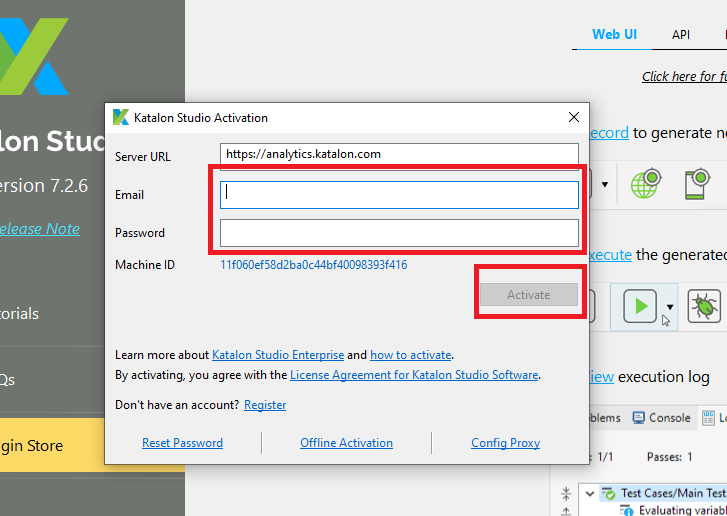
After create account and download run Katalon and fill in your email, password (The URL server is pre-filled) and click activate.
New project
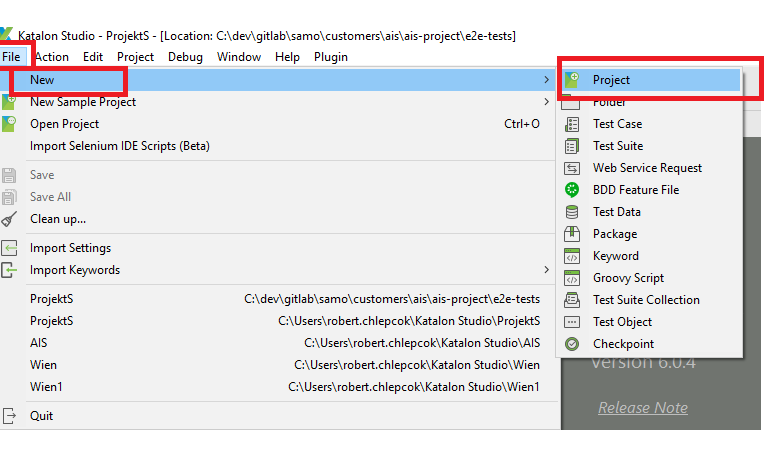
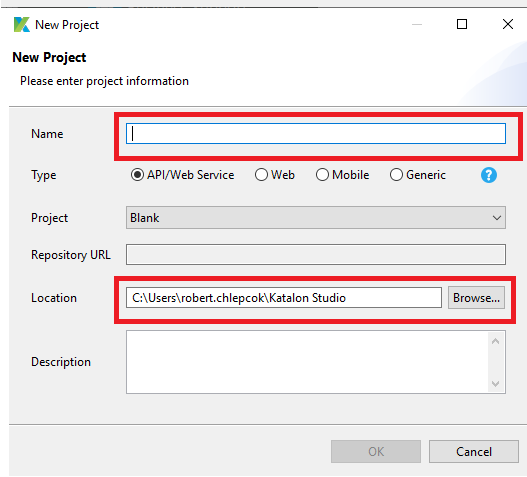
Create a new project: File -> New -> Project -> Enter the name of your new project and the location to store the project data on your machine. Click OK. The new project contains several folders, eg. Test Cases, Object Repository, Test Suites, Keywords, Reports ...
New Test Case
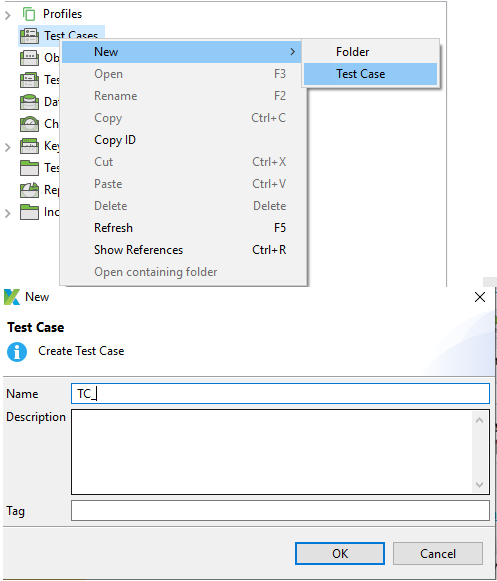
Select option to create New Test Case (Right click Test Cases -> New -> Test Case) Provide the name for your test case then click OK. You can compose the test case by recording, scripting or manually entering test steps.
Record- first object repository and play
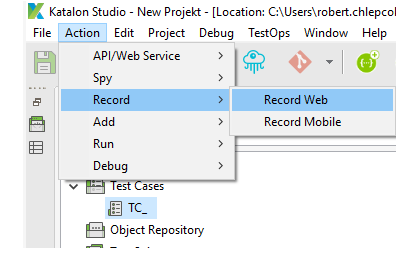
Generate the test using Record feature. (Action -> Record -> Record Web)
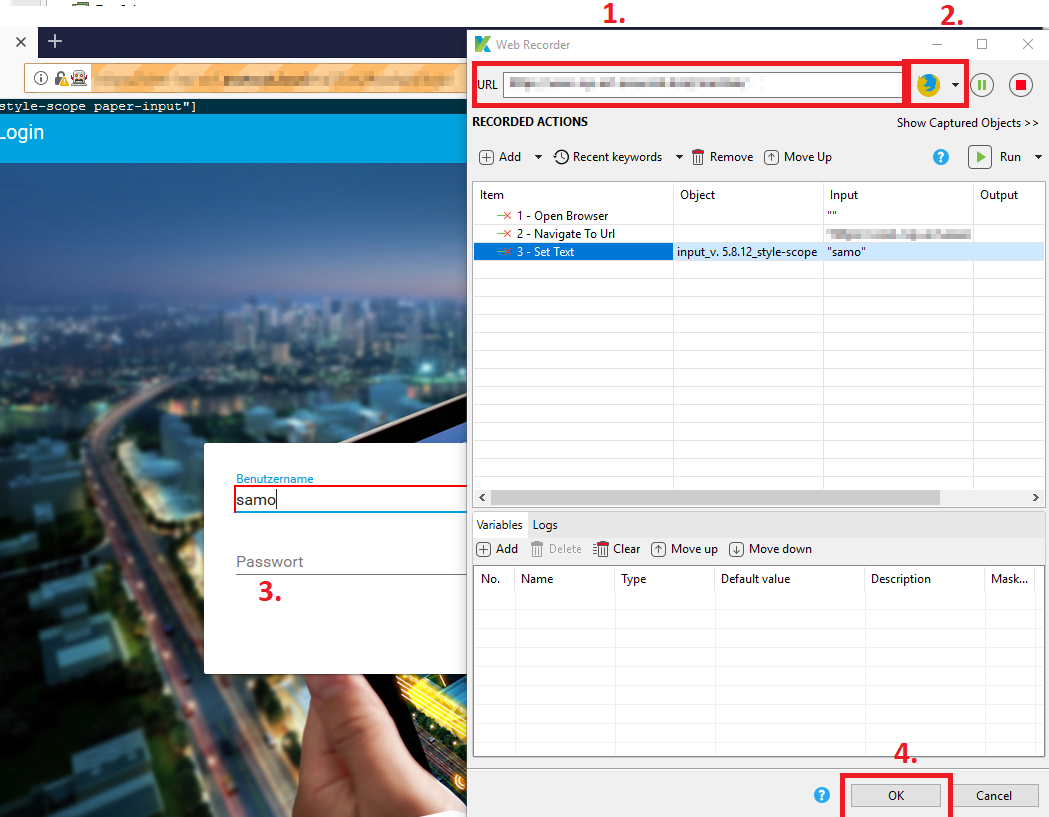
Add a URL project. Click Record to launch the browser. (During recording, the actions taken will be captured and generated in the test steps.). When you are finished, click OK
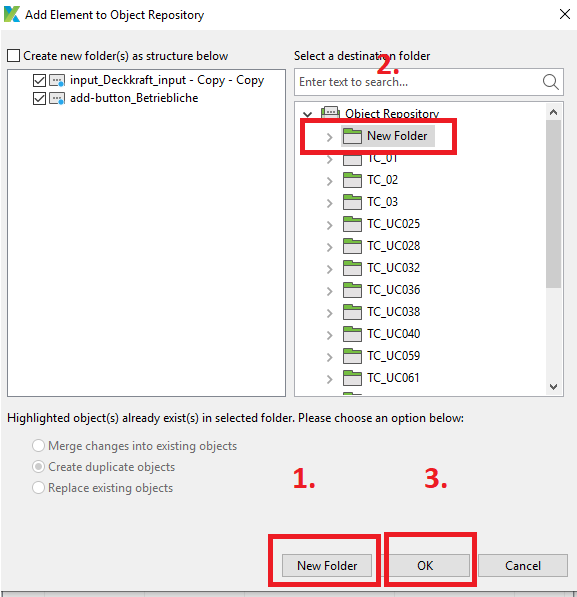
You must confirm saving all captured objects to Object Repository. Create a new folder (New Folder(Optional) -> OK -> folder New Folder) and Click OK.
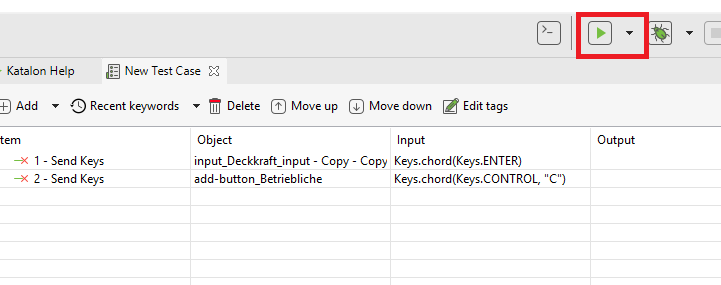
You can now click Run (You can specify a play browser)
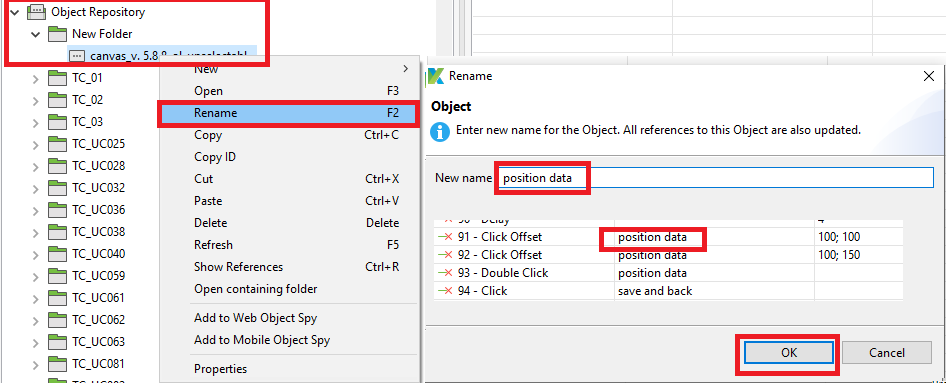
New Folder Object Repository/Rename Object in repository
You can create a new folder in the object repository for your objects: Right click Object repository -> New -> Folder -> fill name: -> OK
You can rename all saved objects in the object repository: Open Object Repository -> Open Folder (My New Folder) -> Right click object -> Rename -> Change Name: -> OK
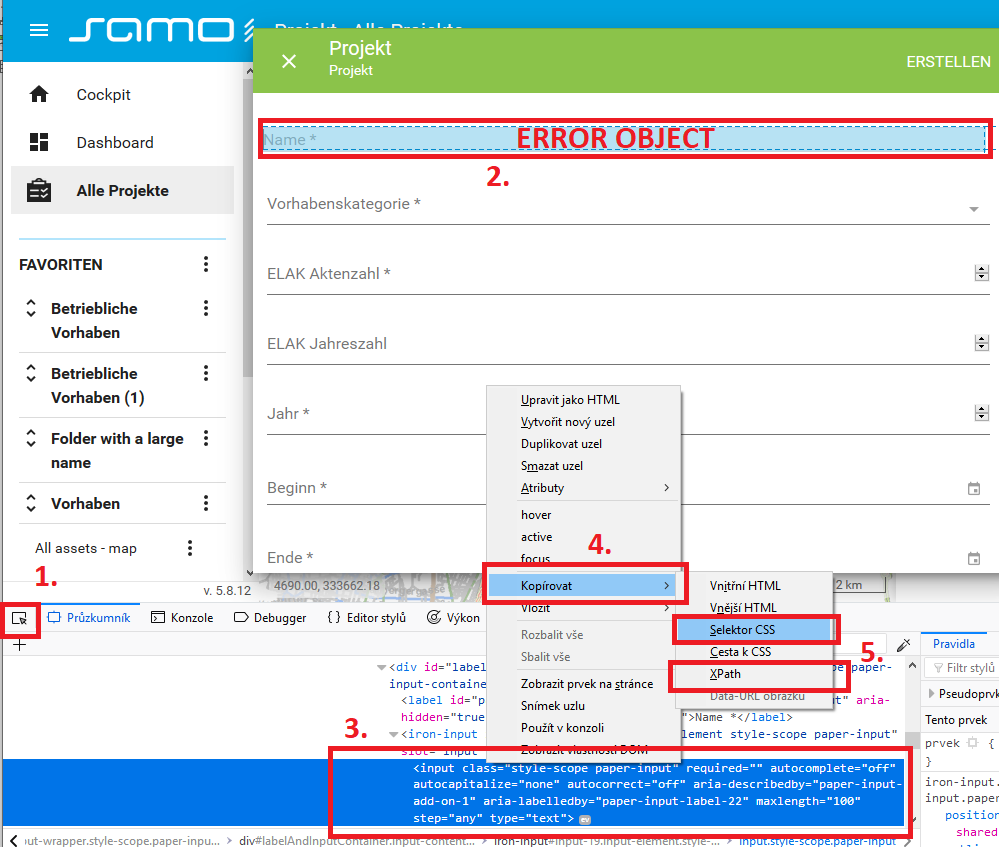
Edit Object in Repository – Error Fix
The most common playback error "Web element not found" - needs to be defined more precisely
1.Play Test Case -> wait for error object -> do not turn the browser off (firefox)
2.Press Key F12 in browser (firefox) -> Select Element -> Error Object -> right click on the Error Object in the developers console -> Copy -> XPath or CSS
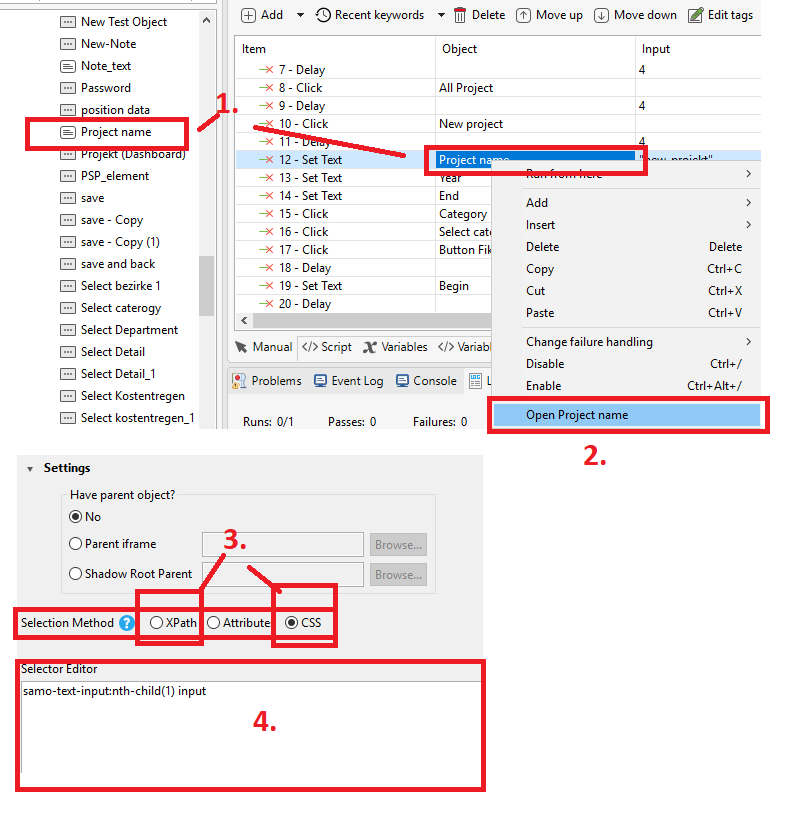
3.Double click the Error Object in the repository or right click the error object in the test case and click Open (object name). -> selection method Xpat/Css -> click in the Selector Editor and pres Ctrl+V (paste)
4.Best selection Method is Xpat, secondary method is CSS.
New Test Suite/Test Suite Collection
Test Suite
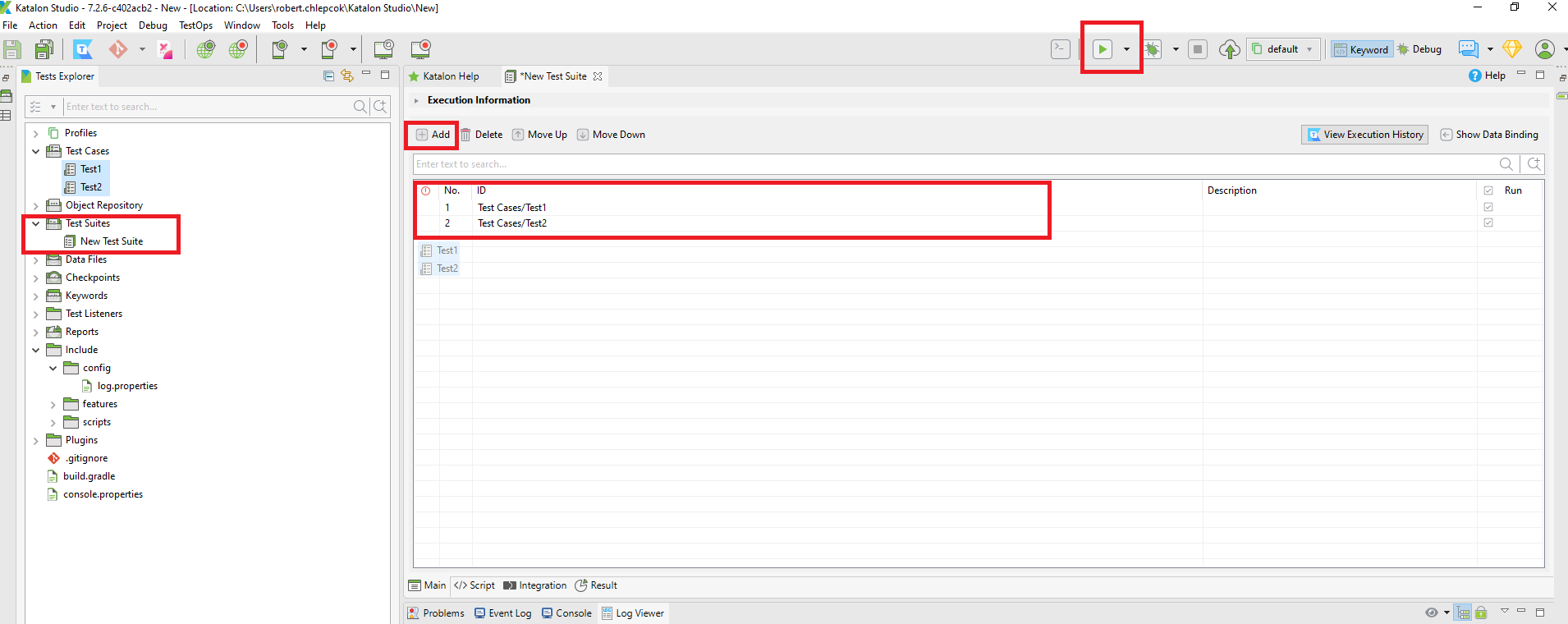
A test suite is a collection of multiple test cases. Select option to create New Test Suite (The most simple way:Right click Test Suites -> New -> Test Suite). Provide the name for your test case then click OK. Select Add and add Test cases
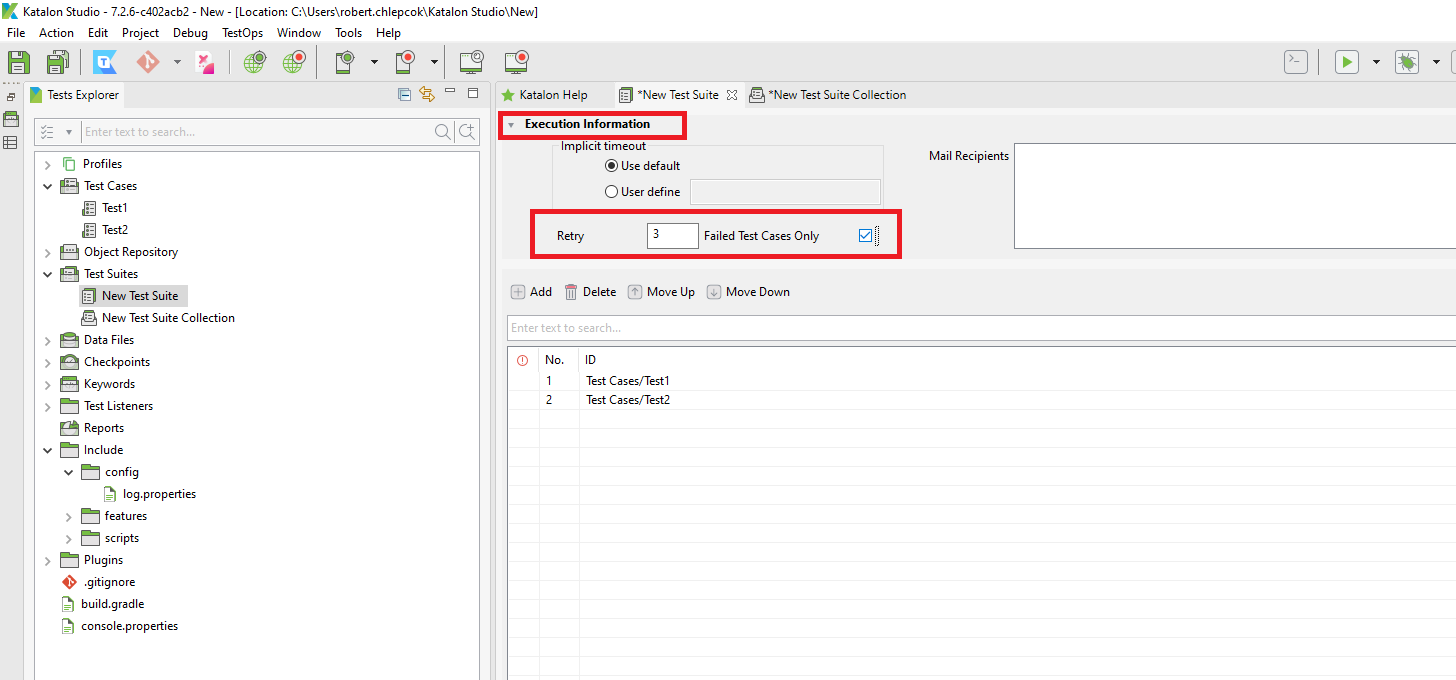
With the Execution Information extension, you can make additional configurations to perform a test suite. Some tests may fail, e.g. connection error. Recommendation: Set to "Repeat = 3" and select the "Failed Test Cases Only" checkbox.
Test Suite Collection
The Test Suite Collection contains a list of Test Suites that give users more options. Select option to create New Test Suite Collection (The most simple way:Right click Test Suites -> New -> Test Suite Collection). Provide the name for your test case then click OK. Select Add and add Test Suite
Custom Keywords
In addition to built-in keywords, users can define custom keywords
Example: Add the Keyword "Upload File"
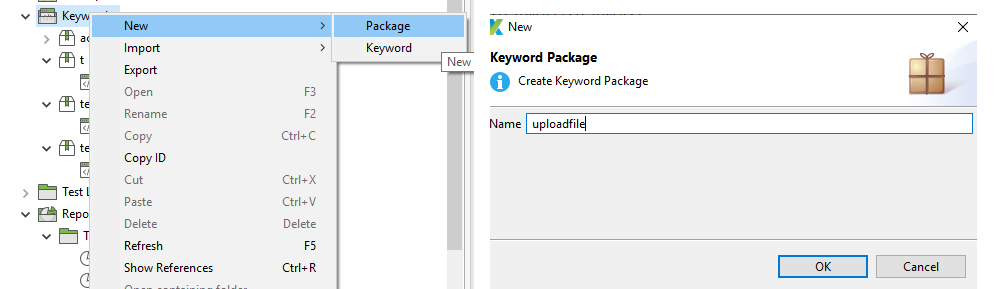
1.Create Keyword : Right click on the "Keywords" files -> New -> Package -> Name: uploadfile . Enter the name for your package and click OK.
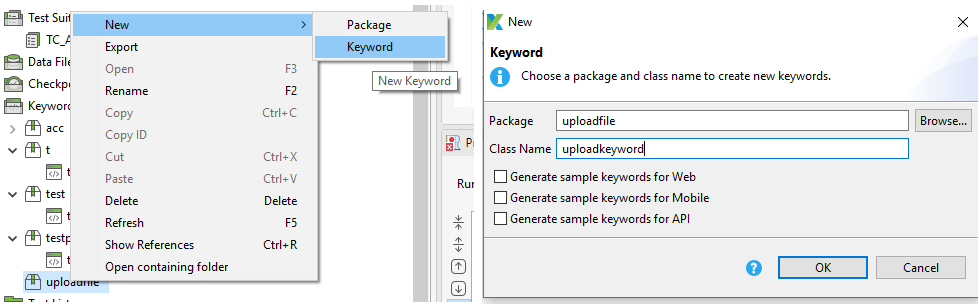
2.Right click on the uploadfile -> New -> Keyword -> Class name: uploadkeyword
Copy the following code to the uploadkeyword:
        package uploadfile

        import static com.kms.katalon.core.checkpoint.CheckpointFactory.findCheckpoint
        import static com.kms.katalon.core.testcase.TestCaseFactory.findTestCase
        import static com.kms.katalon.core.testdata.TestDataFactory.findTestData
        import static com.kms.katalon.core.testobject.ObjectRepository.findTestObject

        import com.kms.katalon.core.annotation.Keyword
        import com.kms.katalon.core.checkpoint.Checkpoint
        import com.kms.katalon.core.cucumber.keyword.CucumberBuiltinKeywords as CucumberKW
        import com.kms.katalon.core.mobile.keyword.MobileBuiltInKeywords as Mobile
        import com.kms.katalon.core.model.FailureHandling
        import com.kms.katalon.core.testcase.TestCase
        import com.kms.katalon.core.testdata.TestData
        import com.kms.katalon.core.testobject.TestObject
        import com.kms.katalon.core.webservice.keyword.WSBuiltInKeywords as WS
        import com.kms.katalon.core.webui.keyword.WebUiBuiltInKeywords as WebUI
        import java.awt.Robot
        import java.awt.Toolkit
        import java.awt.datatransfer.StringSelection
        import java.awt.event.KeyEvent

        import com.kms.katalon.core.annotation.Keyword
        import com.kms.katalon.core.testobject.TestObject
        import com.kms.katalon.core.webui.keyword.WebUiBuiltInKeywords as WebUI
        import internal.GlobalVariable

        public class uploadkeyword {

        @Keyword
        def uploadFile (TestObject to, String filePath) {
        WebUI.click(to)
        StringSelection ss = new StringSelection(filePath);
        Toolkit.getDefaultToolkit().getSystemClipboard().setContents(ss, null);
        Robot robot = new Robot();
        robot.keyPress(KeyEvent.VK_ENTER);
        robot.keyRelease(KeyEvent.VK_ENTER);
        robot.keyPress(KeyEvent.VK_CONTROL);
        robot.keyPress(KeyEvent.VK_V);
        robot.keyRelease(KeyEvent.VK_V);
        robot.keyRelease(KeyEvent.VK_CONTROL);
        robot.keyPress(KeyEvent.VK_ENTER);
        robot.keyRelease(KeyEvent.VK_ENTER);
        WebUI.delay(4)
        robot.keyPress(KeyEvent.VK_ENTER);
        robot.keyRelease(KeyEvent.VK_ENTER);
        robot.keyPress(KeyEvent.VK_CONTROL);
        robot.keyPress(KeyEvent.VK_V);
        robot.keyRelease(KeyEvent.VK_V);
        robot.keyRelease(KeyEvent.VK_CONTROL);
        robot.keyPress(KeyEvent.VK_ENTER);
        robot.keyRelease(KeyEvent.VK_ENTER);
        }
        }
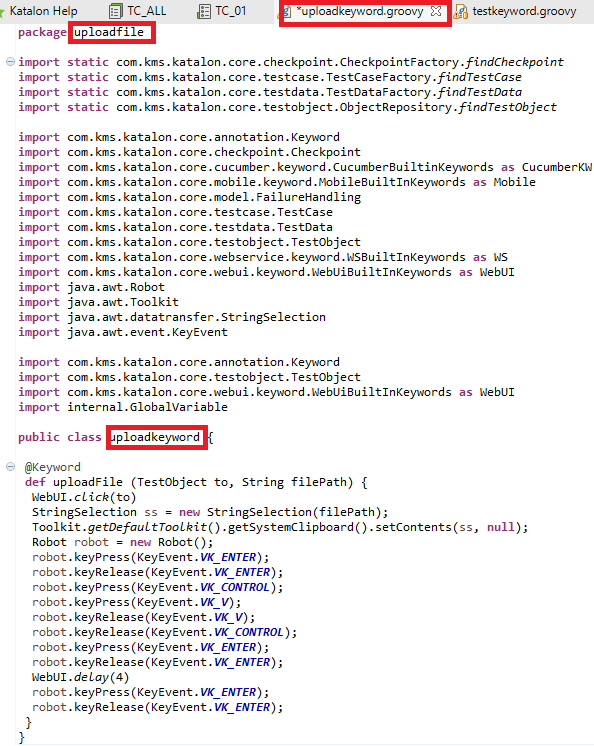
Save -> Close Katalon -> Open Katalon (Refresh Keyword)
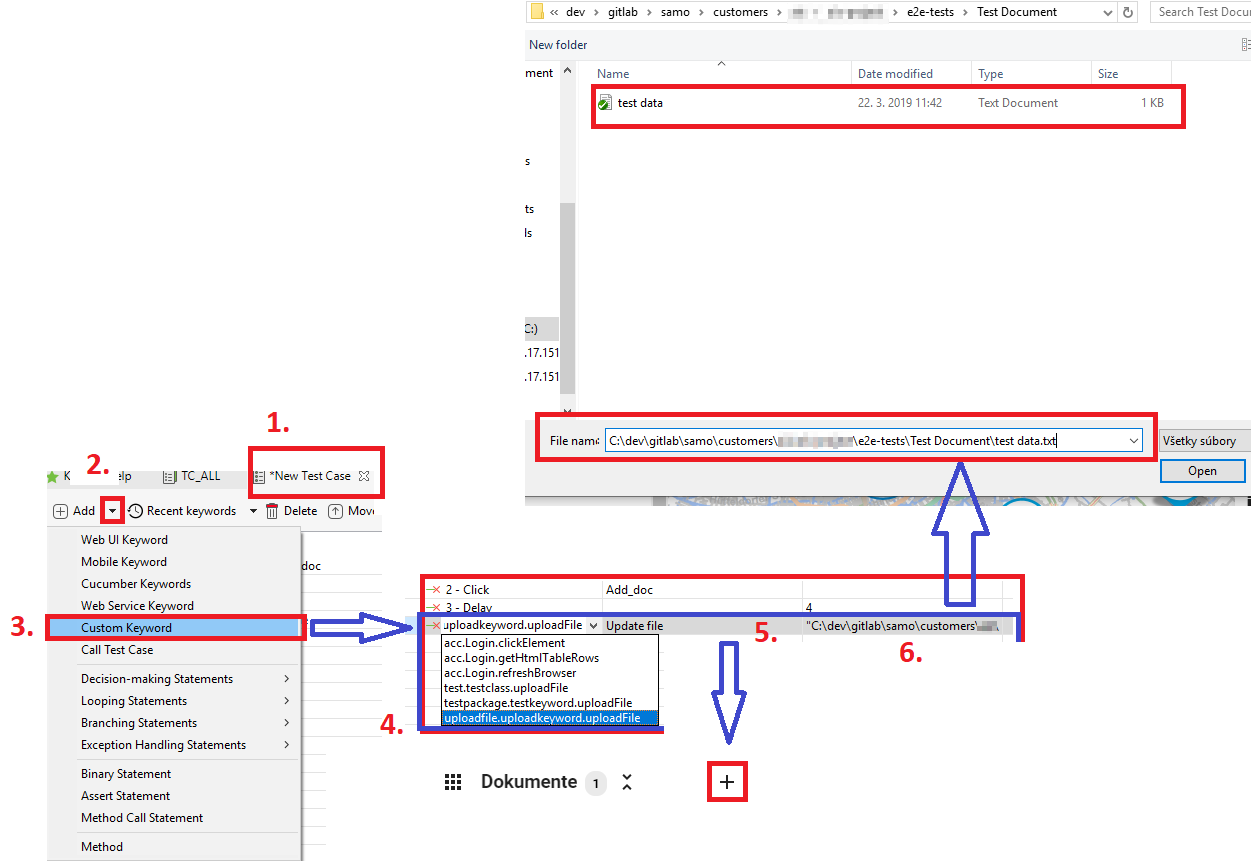
Add Custom Keyword to the Test Case
1.Open Test Case -> 2.Select Add -> 3.Custom Keyword -> 4.Item: select uploadfile.uploadkeyword.uploadFile -> 5.Object: Optional Test Objekt -> 6.Input: Path to document, my path: “C:\dev\gitlab\samo\customers\ais\ais-project\e2e-tests\Test Document\test data.txt”
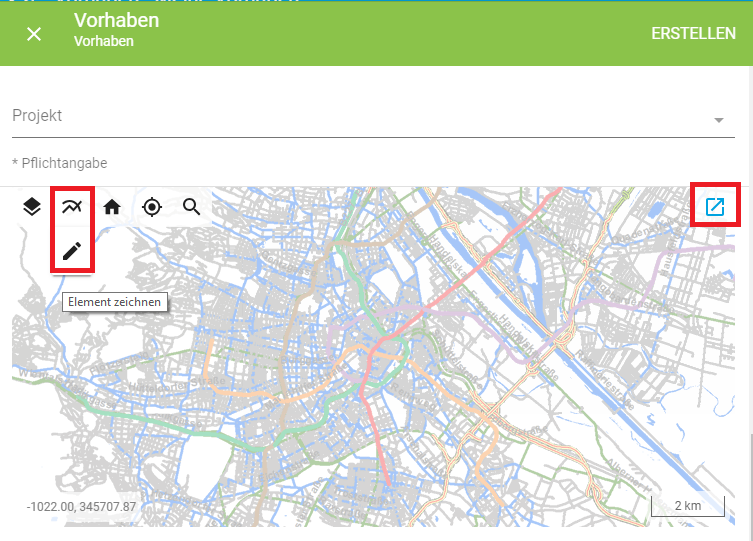
Capture graphic representation (polygon)
In the project
1.In the project: New Vorhaben or other... -> move down the map -> Edit -> Drawing -> Full screen
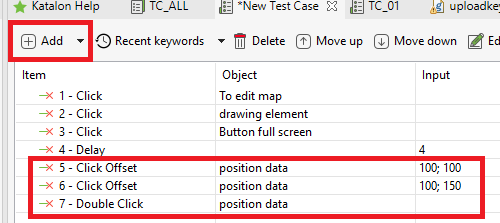
In the Katalon
2.In the Katalon -> Add : Web UI Keyword -> Select item : Click Offset -> Select object : Optionals -> Input : Position data (optional) 100;100 -> repad Add -> change Input : Position data (optional) 100;150 -> Add : Web UI Keyword -> Select item : Double click -> Select object : Optionals ->
Checking Text and Numbers
You can check the text to display:
Easy scenario
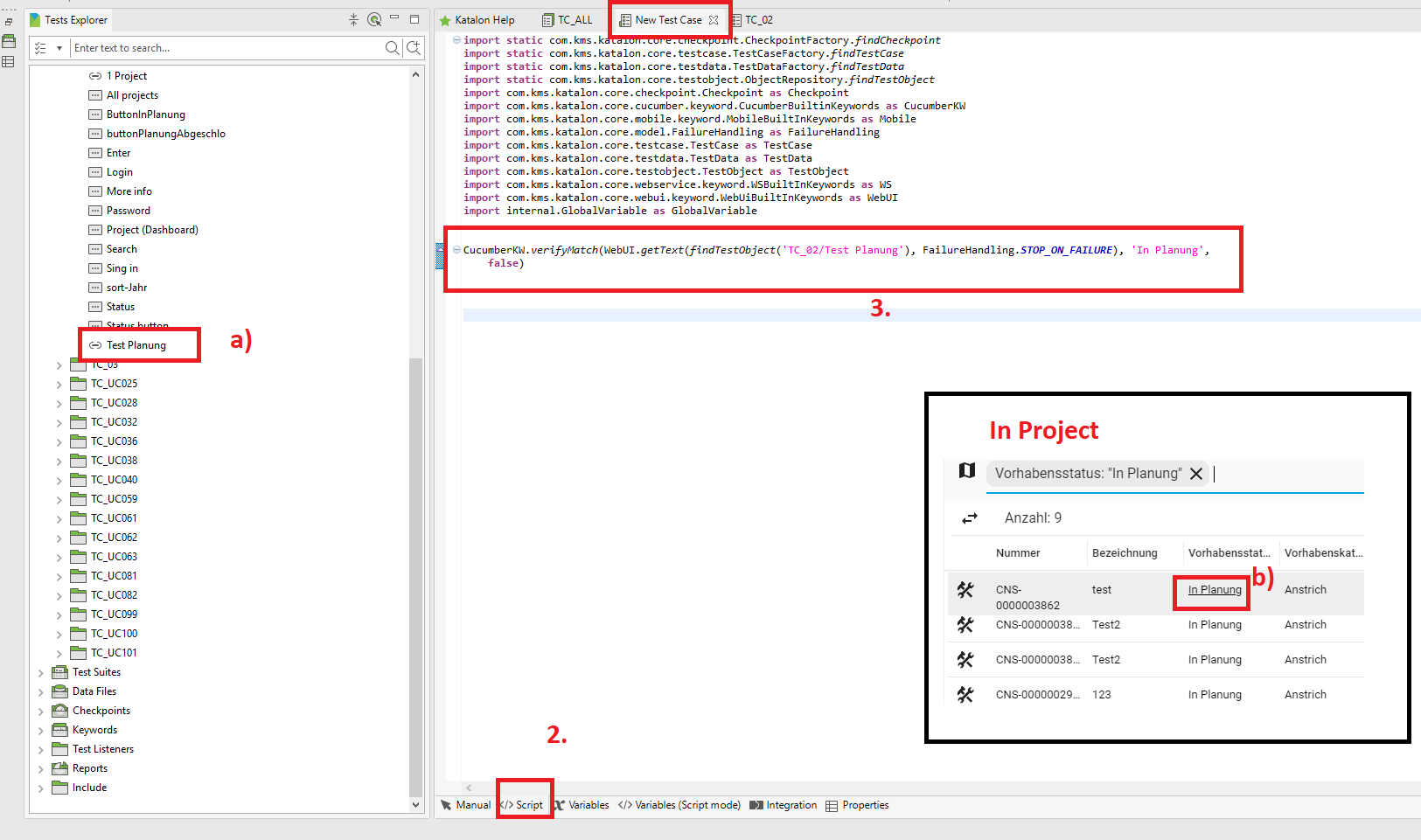
Open Test Case -> 2. Scripts -> 3. Copy the following code to the scripts:
CucumberKW.verifyMatch(WebUI.getText(findTestObject('TC_02/Test Planung'), FailureHandling.STOP_ON_FAILURE), 'In Planung',
    false)
a) TC_02/Test Planung -> Control object in repository (my object is Test Planung in TC_02 Repository)
b) In Planung -> write a text to control (my text In Planung)
Delay
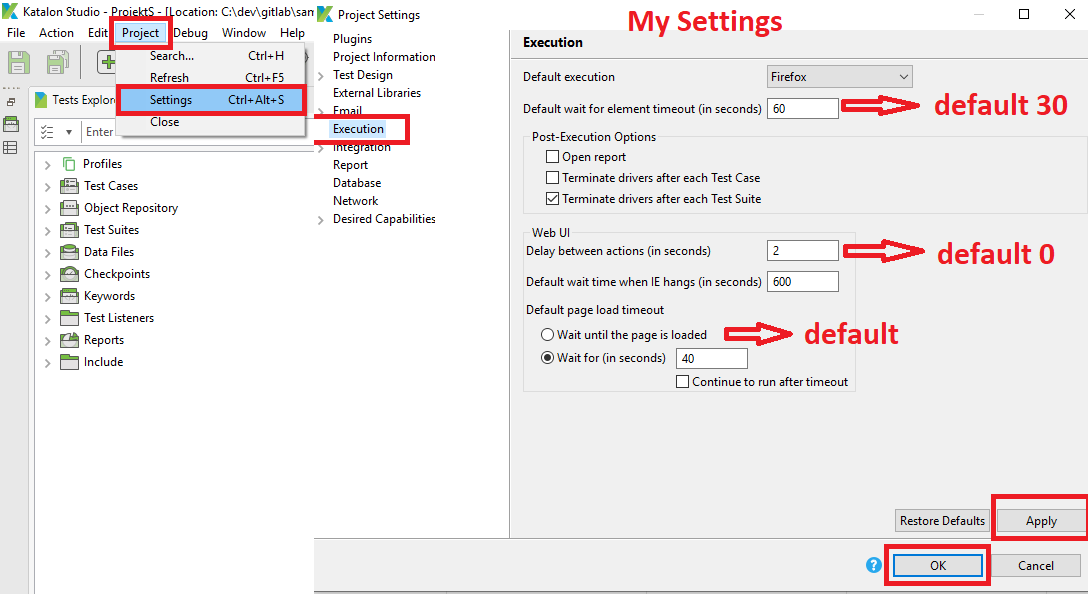
Delay for the whole project and page load timeout
- Project -> Settings -> Execution -> change pause or loadtimeout (Changing “Delay between action” for one or two seconds is recommended for avoiding a few errors) -> Apply -> OK
Save -> Close Katalon -> Open Katalon (Refresh Keyword)
One delay
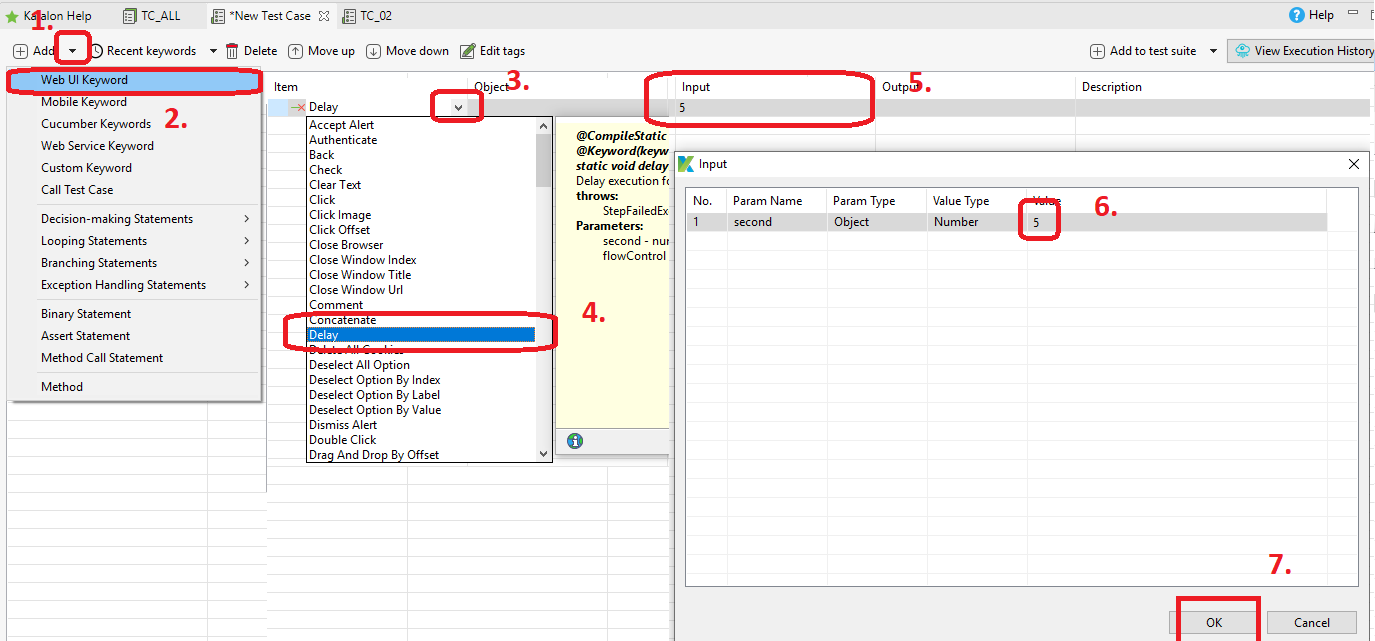
- Select Add -> Select Web UI Keyword -> Select item: Delay -> Input -> change Vaule (delay/seconds) -> OK
Send Keys
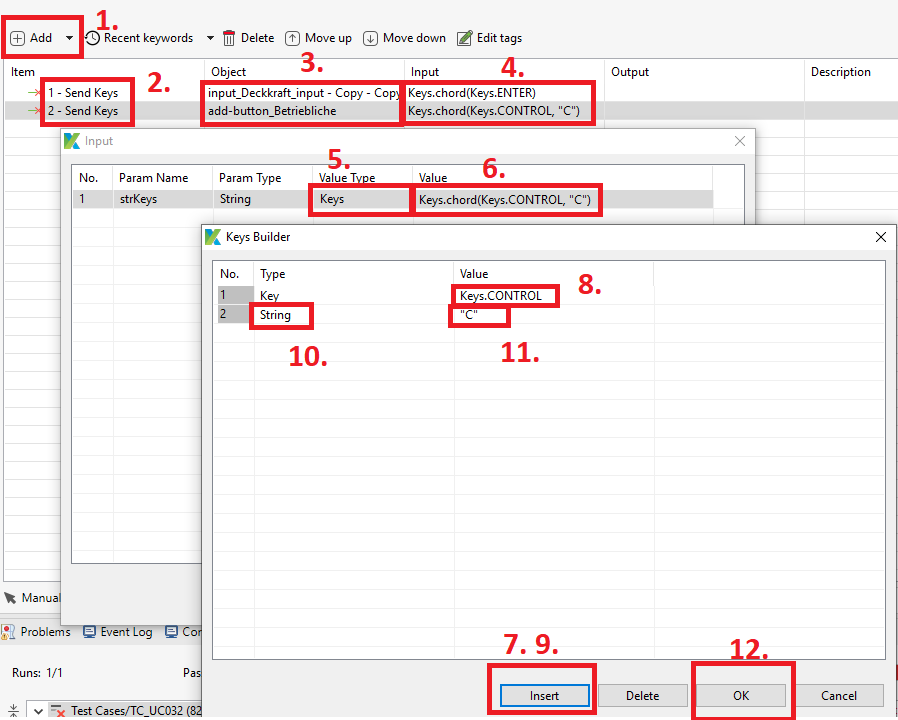
Keys (Ctrl+C)
Add -> Select item: Send Keys -> Select Object : object enter (Optionals) -> Input -> change Vaule type Keys -> Vaule -> Insert -> Type: key -> Vaule: Control -> Insert -> Type: String -> Vaule: C -> OK -> OK
Save -> Close Katalon -> Open Katalon (Refresh Keyword)
Keys (Enter)
Add -> Select item: Send Keys -> Select object : object enter (Optionals) -> Input -> change Vaule type Keys -> Vaule -> Insert -> Type: key -> Vaule: Enter -> OK -> OK