LIDS Browser
⚠️ Warning: Following definition is not used anymore. It was valid for the old generation of LIDS Browser version 8. LIDS Browser was replaced by new generation SAMO LIDS Browser in version 9.
Configuration of LIDS Browser and its graphical user interface (GUI) is defined in metadata extension browser.xml. Basic model (model.xml) defines a range of possible used data (feature types, attributes, relationships).
Privileges and access rights are controlled the same way as in LIDS by LIDS Security. LIDS Settings defines used data layers. Legends are raster images representing „static“ legends with symbology.
Example: Structure of browser.xml.
<ber:modelBrowser>
  <version> [1]
    <metadata> xsd:unsignedInt </metadata> [1]
    <minClient> xsd:unsignedInt </minClient> [0..1]
    <minAS> xsd:unsignedInt </minAS> [0..1]
  </version>
  <ber:mainMap> ber:MainMapType </ber:mainMap> [1]
  <ber:locatorMap> ber:LocatorMapType </ber:locatorMap> [1]
  <ber:includedLayers> ber:IncludedLayersType
  <!--
    Uniqueness Constraint - UniqueOrder
	  Selector - ./*/ber:layer
	  Field(s) - @order
	-->
  </ber:includedLayers> [1]
  <ber:externalWMS> [0..1]
    <ber:externalServers> ber:ExternalServersType </ber:externalServers> [0..1]
    <ber:allowedHosts> ber:AllowedHostsType </ber:allowedHosts> [0..1]
  </ber:externalWMS>
  <ber:locationForms> ber:LocationFormsType </ber:locationForms> [0..1]
  <ber:legends> ber:LegendsType </ber:legends> [0..1]
  <ber:redlineTaskArray> ber:RedlineTaskArrayType </ber:redlineTaskArray> [0..1]
  <ber:plotLayouts> ber:PlotLayoutsType </ber:plotLayouts> [0..1]
  <ber:defaultUserSettings> ber:DefaultUserSettingsType </ber:defaultUserSettings> [0..1]
  <ber:disablePasswordChange> xsd:boolean </ber:disablePasswordChange> [0..1]
  <ber:disableLayersAccessRightsChecking> xsd:boolean </ber:disableLayersAccessRightsChecking> [0..1]
  <ber:plugins> ber:PluginsType </ber:plugins> [0..1]
  <ber:guiConfiguration> ber:GuiConfigurationType </ber:guiConfiguration> [0..1]
  <ber:timeout> xsd:decimal </ber:timeout> [0..1]
  <ber:embedit> xsd:boolean </ber:embedit> [0..1]
  <ber:areaMeasurement> ber:AreaMeasurementType </ber:areaMeasurement> [0..1]
  <ber:mapContextCache> xsd:boolean </ber:mapContextCache> [0..1]
  <ber:backdropLayers> ber:BackdropLayersType </ber:backdropLayers> [0..1]
  <ber:measurementSnappingLayers> ber:MeasurementSnappingLayersType </ber:measurementSnappingLayers> [0..1]
  <ber:attachments
   maxScaleDenominator="ber:ScaleType [0..1]"
   defaultIcon="xsd:string [0..1]"
   openIcon="xsd:string [0..1]"
   hoverIcon="xsd:string [0..1]"/> [0..1]
  <ber:vectorGraphicSymbology> ber:VectorGraphicSymbologyType </ber:vectorGraphicSymbology> [0..1]
  <ber:featureBrowse> ber:FeatureBrowseType </ber:featureBrowse> [0..1]
  <ber:centerCoord> ber:CenterCoordType </ber:centerCoord> [0..1]
  <ber:contexts> ber:ConfigurationContextstType </ber:contexts> [0..1]
</ber:modelBrowser>
Deploying configuration for LIDS Browser
Uploadbrowser.xml– LIDS AS Admin console => Project Control => Metadata extension Files => LIDS Browser
Start project – LIDS AS Admin console => Project Control
Configure LIDS Browser - LIDS AS Admin console => Browser & Map Services => Configure LIDS Browser
Transformed files are stored in {project_folder}\browser\context\ folder.
Example: Metadata system versioning.
  <ber:version>
    <ber:metadata>2</ber:metadata>
    <ber:minClient>2754</ber:minClient>
    <ber:minAS>11904</ber:minAS>
  </ber:version>
Main Map
Defines settings of the map components.
-
range – Range of map which will be displayed after initialization of LIDS Browser.
-
minScaleDenominator/maxScaleDenominator – Minimal and maximal scale for displaying data.
-
scales – List of map scales for displaying – scale “levels” for displaying data.
-
locationSymbology – Symbology properties for element location (general / for specified feature types).
-
stampText, usageLink – Text content for stamp (company name, version etc.) and for link to Terms.
  <ber:mainMap>
    <ber:initialSettings>
      <ber:range>
        <ber:x min="3451400.00" max="3451850.00"/>
        <ber:y min="5481600.00" max="5481900.00"/>
      </ber:range>
    </ber:initialSettings>
    <ber:minScaleDenominator>100</ber:minScaleDenominator>
    <ber:maxScaleDenominator>500000</ber:maxScaleDenominator>
    <ber:scales>
      <ber:scale>200000</ber:scale>
      <ber:scale>100000</ber:scale>
      <ber:scale>50000</ber:scale>
      <ber:scale>20000</ber:scale>
      <ber:scale>10000</ber:scale>
      <ber:scale>5000</ber:scale>
      <ber:scale>2000</ber:scale>
      <ber:scale>1000</ber:scale>
      <ber:scale>500</ber:scale>
      <ber:scale>200</ber:scale>
      <ber:scale>100</ber:scale>
    </ber:scales>
    <ber:backgroundColor>#FFFFFF</ber:backgroundColor>
    <ber:locationSymbology>
      <ber:rgbColor>#FF00FF</ber:rgbColor>
      <ber:strokeWidth>2</ber:strokeWidth>
      <ber:featureTypeSymbolizerArray>
        <ber:featureTypeSymbolizer ftid="ft_5012100">
          <ber:fillColor>#FF0000</ber:fillColor>
          <ber:fillOpacity>0.5</ber:fillOpacity>
          <ber:strokeWidth>5</ber:strokeWidth>
          <ber:strokeColor>#FF0000</ber:strokeColor>
        </ber:featureTypeSymbolizer>
        <ber:featureTypeSymbolizer ftid="ft_5060000">
          <ber:fillColor>#FF9C00</ber:fillColor>
          <ber:fillOpacity>0.5</ber:fillOpacity>
          <ber:strokeWidth>8</ber:strokeWidth>
          <ber:strokeColor>#FF0000</ber:strokeColor>
        </ber:featureTypeSymbolizer>
      </ber:featureTypeSymbolizerArray>
    </ber:locationSymbology>
    <ber:stampText>© 2016 Asseco CE</ber:stampText>
    <ber:usageLink usageLinkUrl="http://asseco.com/ce/">Terms of Usage</ber:usageLink>
  </ber:mainMap>
Overview Map
Name of registered backdrop layer which represents overview (vicinity) map and initial range from backdrop file which will be displayed in overview map window is defined in <ber:locatorMap>.
Example: Overview map.
  <ber:locatorMap>
    <ber:range>
      <ber:x min="3440000.00" max="3470000.00"/>
      <ber:y min="5476000.00" max="5491000.00"/>
    </ber:range>
    <ber:layer refId="bd_05"/>
  </ber:locatorMap>
Layers
Displayed to user as „map layers“ and used for downloading LIDS data.
-
refId – Identifier of data source. There are 4 alternatives: category (cat_: identifier of category defined in model.xml), set definition (setdefinition_: identifier of LIDS set definition stored in LIDS_SETTINGS table), backdrop (defined in model.xml), TMS layer (defined in map -s ervice.xml) and external layer (identifier of external server, stored in LIDS store).
-
visible – Boolean. Implicit visibility of the layer.
-
queryable – Boolean. Possibility to download alphanumerical data.
-
opacity – Boolean. Implicit opacity of the layer.
-
minScaleDenominator/maxScaleDenominator – The lowest and the highest map scale for downloading data.
Layer grouping
Group of layers is displayed as 1 named layer for user. All the assigned layers (<ber:layerGroup…>) are controlled by 1 checkbox. Parameter visible can be defined only for the whole group. Other parameters can be defined for the particular layer or for the whole group.
Hierarchy of layers
Layers can be also sorted into folders (<ber:folder…>). Each folder has its name and id and optional boolean parameter expanded.
Example: Included layers.
<ber:includedLayers>
    <ber:layer refId="setdefinition_88680012216213984"/>
    <ber:layer refId="setdefinition_2011050282" visible="true" minScaleDenominator="100" maxScaleDenominator="2000"/>
    <ber:layer refId="setdefinition_201105021258"/>
    <!-- Hierarchy modeled using nonexpandable master category  -->
    <ber:layer refId="cat_redlining_sketch"/>
    <!-- Hierarchy modeled using folder -->
    <ber:folder name="Redlining + Sketch as folder" id="rs_folder" expanded="true">
      <ber:layer refId="cat_5070000"/>
      <ber:layer refId="cat_5080000"/>
    </ber:folder>
    <ber:layer refId="cat_5010000"/>
    <ber:layerGroup id="waterGroup1" name="Water group">
      <ber:layer refId="tms_water" minScaleDenominator="300"/>
...
      <ber:layer refId="tms_detailed_plan" minScaleDenominator="100" maxScaleDenominator="150"/>
    </ber:layerGroup>
...
</ber:includedLayers>
Web Map Service
Defines external WMS server by means of LIDS setting or by URL address.
- allowedHosts – For now constant value „* .berit.cz”.
Example:
  <ber:externalWMS>
    <ber:externalServers>
      <ber:externalServer xlink:href="setting#id_2064886259077533"/>
      <ber:externalServer xlink:href="http://srv:9200/PROJECT/WebMapService"/>
    </ber:externalServers>
    <ber:allowedHosts>
      <ber:allowedHost>*.berit.cz</ber:allowedHost>
    </ber:allowedHosts>
  </ber:externalWMS>
Location Forms
⚠️ Warning: LIDS Browser doesn’t support Interface forms.
Enable user to search (locate) elements according to a defined filter. Name is displayed to user. This element is optional.
-
request – Definition of form displayed to user.
-
form – HTML description of content of the location form; the variables from the form are referred in GetFeature request as :variable_name: (e.g. from example below „variable1“). Request subelement
WFS GetFeature request. This request must contain filter with an attribute condition.
-
wfs:Query – Can contain more elements (each with feature type identifier typeName) for searching more feature types by means of 1 location form.
-
ogc:Filter – Possible values are for examplePropertyIsLike,PropertyIsEqualTo,PropertyIsBetween.
-
ogc:PropertyName – Attribute identifier (ft_parcel_face/at_parcel_number) or codelist attribute identifier (ft_5060000/at_5060002/ca_00903).
-
ogc:Literal – Link to variable.
-
ogc:And – More attributes can be used for filtering (searching).Formsubelement
HTML tags table, tr, td are used for making structure / layout of form.
-
td – Cell definition contains name of cell (item) displayed to user and properties for input variable (name, type, size, required flag, default value); also other HTML tags can be used (e.g.bgcolor,styleetc.).
-
input – Parameters name, size, value, type (text: parameter isNumber – true/false; date: isNumber – true/false; codelist: clId – codelist identifier; keyId – codelist code attribute identifier; displayId – codelist description attribute identifier).
Example: Location form.
    <ber:locationForm name="Service organization unit - locate">
      <ber:request>
        <wfs:GetFeature xmlns:wfs="http://www.opengis.net/wfs" xmlns:ogc="http://www.opengis.net/ogc" version="1.0.0" service="WFS" outputFormat="WMS_GML">
          <wfs:Query typeName="ft_5060000">
            <ogc:Filter>
              <ogc:PropertyIsLike wildCard="*" singleChar="?" escapeChar="\">
                <ogc:PropertyName>ft_5060000/at_5060002/ca_00903</ogc:PropertyName>
                <ogc:Literal>:variable1:*</ogc:Literal>
              </ogc:PropertyIsLike>
            </ogc:Filter>
          </wfs:Query>
        </wfs:GetFeature>
      </ber:request>
      <ber:form>
        <table xmlns="http://www.w3.org/1999/xhtml">
          <tr>
            <td>Unit name:</td>
            <td>
              <input name="variable1" type="text" size="10" value="Centrum"/>
            </td>
          </tr>
        </table>
      </ber:form>
    </ber:locationForm>
Legends
Contains list of the legends definitions which are shown in LIDS BrowserLegendwindow. This element is optional.
-
file – Location. The folder is predefined {project_folder}\browser\resource.
-
refId – List of related layers (category, set definition, backdrop, tms) for which the given legend is displayed.
Example: Legend.
  <ber:legends>
    <ber:legend name="Water" file="water.png">
      <ber:layer refId="cat_5010000"/>
      <ber:layer refId="setdefinition_2011050282"/>
      <ber:layer refId="tms_water"/>
    </ber:legend>
    <ber:legend name="Common objects" file="common_objects.png">
      <ber:layer refId="cat_5010000" minScaleDenominator="250" maxScaleDenominator="1200"/>
      <ber:layer refId="cat_5040000"/>
    </ber:legend>
  </ber:legends>
Redline Tasks
Contains list of redline task definitions. This element is optional.
-
featureType – Refers to feature type frommodel.xml.
-
noteAttribute – Refers the feature attribute for inserting the text value. This element is optional. If this element is missing, then LIDS Browser insert only geometry.
-
layer – Refers a category or setting containing this feature type.
-
showMeasurement – Enables displaying of length / surface of the drawn line / polygon.
-
snappingLayers – Defines layers for snapping during drawing.
Example: Redline task.
  </ber:redlineTaskArray>
    <ber:group name="Sketch">
      <ber:redlineTask>
        <ber:featureType xlink:href="model.xml#ft_5081000"/>
        <ber:noteAttribute xlink:href="model.xml#at_5080003"/>
        <ber:layer refId="cat_5080000"/>
      </ber:redlineTask>
      <ber:redlineTask showMeasurement="true">
        <ber:featureType xlink:href="model.xml#ft_5082000"/>
        <ber:noteAttribute xlink:href="model.xml#at_5080003"/>
        <ber:layer refId="cat_5080000"/>
      </ber:redlineTask>
      <ber:redlineTask showMeasurement="true">
        <ber:featureType xlink:href="model.xml#ft_5083000"/>
        <!-- ber:noteAttribute xlink:href="model.xml#at_5080003"/-->
        <ber:layer refId="cat_5080000"/>
        <ber:snappingLayers>
          <ber:layer refId="setdefinition_1903258049794461"/>
        </ber:snappingLayers>
      </ber:redlineTask>
      <ber:redlineTask>
        <ber:featureType xlink:href="model.xml#ft_5084000"/>
        <ber:noteAttribute xlink:href="model.xml#at_5080003"/>
        <ber:layer refId="cat_5080000"/>
      </ber:redlineTask>
    </ber:group>
  </ber:redlineTaskArray>
Create Features without Graphics
Section insertFeatureTypeArray defines list of feature types to be created without graphics.
If assocsArray element is defined, the feature without graphics is created only as the related feature to an existing one.
Example:
  <ber:insertFeatureTypeArray>
    <ber:featureType xlink:href="model.xml#ft_1"/>
    <ber:featureType xlink:href="model.xml#ft_2"/>
    <ber:featureType xlink:href="model.xml#ft_3">
      <ber:assocsArray>
        <ber:assoc id="r_1" srcFt="ft_4" srcRole="rt_1" destRole="rt_2"/>
      </ber:assocsArray>
    </ber:featureType>
  </ber:insertFeatureTypeArray>
Plot Layouts
Contains list of plot settings. It should contain plottinglayout settings and default plot layout. List of predefined plot layouts (creating is possible in LIDS Explorer) which can be used in LIDS Browser. Plot layout contains static text, frames, pictures.
-
xlink:href– Link to LIDS setting of type “plottinglayout”; it contains global definition for output map layout and for its individual components.
-
scales – List of possible map scales which can be used for given plot layout.
-
rotations – List of possible rotations which can be used for given plot layout (from -180 to 180).
⚠️ Warning: LIDS Browser supports only single-page plot layouts with following components:
-
Map frame – Supported with limitations.
-
Overview map frame
-
North arrow frame
-
Scale frame – Supported with limitations.
-
Text frame
-
Variable frame
-
Rubberstamp frame – Supported with limitations.
Example: Plot layout.
  <ber:plotLayouts>
    <ber:defaultPlotLayout name="Plot layout - default"/>
    <ber:plotLayout xlink:href="setting#id_1266">
      <ber:scales>
        <ber:scale>500</ber:scale>
        <ber:scale>1000</ber:scale>
        <ber:scale>3500</ber:scale>
      </ber:scales>
      <ber:rotations>
        <ber:rotation>-45</ber:rotation>
        <ber:rotation>-25.5</ber:rotation>
        <ber:rotation>0</ber:rotation>
        <ber:rotation>15</ber:rotation>
        <ber:rotation>155.2</ber:rotation>
      </ber:rotations>
    </ber:plotLayout>
  </ber:plotLayouts>
Default Settings
-
highlightSelectedFeatures – True = features selected in browse are highlighted.
-
animateZoom – True = zooming of graphic data display is animated.
-
clickSelector – True = features for reading alphanumerical data are selected by double click, False = features for reading alphanumerical data are selected by an area.
-
snappingModes – Implicit „turn on“ of particular snapping modes (node, edge, vertex, intersections, centroid).
-
attachmentsSort – Defines field for attachments ordering. Possible values: content, contentType, contentId, description, name, openText, previewId, userLink. Default is name.
-
maxFeaturesMapSelected– defines maximum number of features sent to form when selecting features in map. Default is 1000
-
maxSizeDialogForm– defines size of dialog for working with details
Example: Default user settings.
  <ber:defaultUserSettings>
    <ber:highlightSelectedFeatures>true</ber:highlightSelectedFeatures>
    <ber:animateZoom>true</ber:animateZoom>
    <ber:clickSelector>false</ber:clickSelector>
    <ber:maxFeaturesMapSelected>2000</ber:maxFeaturesMapSelected>
    <ber:snappingModes>
     <ber:snappingMode id="node">true</ber:snappingMode>
     <ber:snappingMode id="edge">true</ber:snappingMode>
     <ber:snappingMode id="vertex">true</ber:snappingMode>
     <ber:snappingMode id="intersections">true</ber:snappingMode>
     <ber:snappingMode id="centroid">true</ber:snappingMode>
    </ber:snappingModes>
    <ber:maxSizeDialogForm width="500" height="400"/>
    <ber:attachmentsSort orderBy="description"/>
  </ber:defaultUserSettings>
Plugins
Contains list of the enabled plugins for LIDS Browser. This element is optional.
-
id – LIDS Browser plugin definition. Permitted values: „cuzk“, „addressPoint“, „ap“, „elevationInfo“.
-
form – Reference to a form from model.xml.
Example: Plugin.
    <ber:plugin id="addressPoint">
      <ber:configuration>
        <ber:forms>
          <ber:form xlink:href="model.xml#fmx_50121"/>
        </ber:forms>
      </ber:configuration>
    </ber:plugin>
GUI Configuration
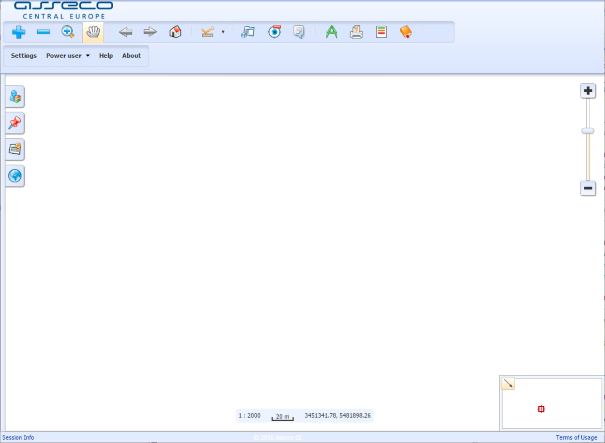
Metadata definition of graphical user interface. If defined according to the following example, interface will look like this:
Modules
Module is extension of Lids Browser functionality. Lids Browser contains native modules, but it could be extended by special project modules. Native modules are defined only by id. Other modules must have defined path.
Example: Metadata definition of main menu and top right toolbar.
    <ber:modules>
      <ber:mainMenu>
        <ber:module id="layers"/>
        <ber:module id="views"/>
        <ber:module id="search"/>
        <ber:module id="externalLayers"/>
      </ber:mainMenu>
      <ber:toolBar>
        <ber:module id="draw"/>
        <ber:module id="print"/>
        <ber:module id="legends"/>
        <ber:module id="history"/>
      </ber:toolBar>
    </ber:modules>
Main menu consists of four panels:

Top right toolbar contains the following icons:

Toolbars
Section <ber:toolbars> defines two tollbars located on the left of top toolbar menu – mapToolbar and applicationToolbar.
Example: Map and application toolbars.
    <ber:toolbars>
      <ber:mapToolbar>
        <ber:toolbarItem type="button" id="zoomIn"/>
        <ber:toolbarItem type="button" id="zoomOut"/>
        <ber:toolbarItem type="button" id="zoomBox"/>
        <ber:toolbarItem type="button" id="hand"/>
        <ber:toolbarItem type="separator"/>
        <ber:toolbarItem type="button" id="back"/>
        <ber:toolbarItem type="button" id="forward"/>
        <ber:toolbarItem type="button" id="home"/>
        <ber:toolbarItem type="separator"/>
        <ber:toolbarItem type="button" id="measurement"/>
        <ber:toolbarItem type="separator"/>
        <ber:toolbarItem type="button" id="info"/>
        <ber:toolbarItem type="button" id="clear"/>
        <ber:toolbarItem type="button" id="attachments"/>
        <ber:toolbarItem type="separator"/>
      </ber:mapToolbar>
      <ber:applicationToolbar>
        <ber:toolbarItem type="button" id="settings"/>
        <ber:toolbarItem type="button" id="user"/>
        <ber:toolbarItem type="button" id="help"/>
        <ber:toolbarItem type="button" id="about"/>
      </ber:applicationToolbar>
    </ber:toolbars>
Map toolbar:

Application toolbar:

Drawing dialog box
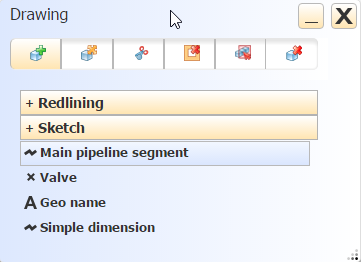
Metadata definition of movable window “Drawing” which is referenced by <ber:module id="draw"/>.
Example: Drawing dialog box.
    <ber:paintingPanel>
      <ber:paintingPanelItem id="insert"/>
      <ber:paintingPanelItem id="modify"/>
      <ber:paintingPanelItem id="cutHole"/>
      <ber:paintingPanelItem id="deleteHole"/>
      <ber:paintingPanelItem id="delete"/>
      <ber:paintingPanelItem id="deleteSingle"/>
    </ber:paintingPanel>
Styles
Definition of visualisation of buttons, toolbars etc. For example, color and its gradient.
Example: Visualisation style.
    <ber:styles>
      <ber:style id="mainGradientFrom">#F2F7FF</ber:style>
      <ber:style id="mainGradientTo">#DAE6FE</ber:style>
      <ber:style id="mainColor">#000000</ber:style>
...
      <ber:style id="border">#b3b3b3</ber:style>
...
      <ber:style id="toolBar">#505050</ber:style>
    </ber:styles>
Symbology of Vector Graphics
Enables to define symbology for predefined types of operations with vector data.
-
id – specifies operation type (drawFeature, measurement, modifyFeature, selectfeature, wktFeature, selectPolygonFeature).
-
symbolizer properties – fillColor, fillOpacity, strokeWidth, strokeColor, fontSize.
Example: Symbology of vector graphics.
  <ber:vectorGraphicSymbology>
    <ber:symbolizer id="drawFeature">
      <ber:fillColor>#FF8000</ber:fillColor>
      <ber:fillOpacity>0.2</ber:fillOpacity>
      <ber:strokeWidth>2</ber:strokeWidth>
      <ber:strokeColor>#91A3B0</ber:strokeColor>
    </ber:symbolizer>
...
  </ber:vectorGraphicSymbology>
Additional Layers
The graphical data displaying in the map is mainly based on loading the layers in the form of raster response from map services. On the other hand, some functions require graphical data to be downloaded as vectors. This means the data has to be loaded twice (raster for display and vector for function specific needs). Only the data from explicitly defined layers are loaded in the vector form parallel to the raster, in order to minimize the network traffic and server load.
Definition includes parameters typical for layerType – refId, min/maxScaleDenominator or visible.measurementSnappingLayers - layers used for snapping during measurement
featureTooltipInfoLayers – feature info is displayed for the features from these layers
selectByPolygonLayers – the polygon features from these layers can be used for the function Information on Features – by existing polygon
Example: Definition of additional layers.
  <ber:featureTooltipInfoLayers>
    <ber:layer refId="setdefinition_1"/>
    <ber:layer refId="setdefinition_2"/>
    <ber:layer refId="setdefinition_3"/>
  </ber:featureTooltipInfoLayers>
  <ber:selectByPolygonLayers>
    <ber:layer refId="setdefinition_2"/>
    <ber:layer refId="setdefinition 4"/>
  </ber:selectByPolygonLayers>
Tracing linear topology
Calling of tracing function is possible by selecting some of the predefined tracing tasks. The list of available tracing tasks is defined in <ber:topoTracingArray>
Example: Topological tracing tasks.
  <ber:topoTracingArray>
    <ber:traceOut xlink:href="option.xml#tr_1"/>
    <ber:traceOut xlink:href="option.xml#tr_2"/>
    <ber:traceOut xlink:href="option.xml#tr_3"/>
  </ber:topoTracingArray>
Contexts
Configuration for LIDS Browser used for some named context = initialization of LIDS Browser from certain part (context) of “control” application. Using of “context” element enables to use one browser.xml with different GUI/function/layer configurations. Section <ber:contexts> has similar structure as the whole browser.xml.
Example: Context.
<ber:contexts>
    <ber:context id="context_01">
      <ber:mainMap>
...
      </ber:mainMap>
      <ber:locatorMap>
...
</ber:contexts>
💡 Tip: Calling LIDS Browser with use of CONTEXT parameter:
http://appsrv:9696/LIDSDemo/browser/api?CONTEXT=spotCheckReport
Special Parameters
-
<ber:disablePasswordChange>Contains boolean value for disabling password change in Browser. -
<ber:disableLayersAccessRightsChecking>Contains boolean value for checking access rights. -
<ber:timeout>Decimal value in minutes. -
<ber:mapContextCache>True/false. -
<ber:areaMeasurement unit="ha" scale="2"/>Measurement in metres is always used, here is defined additional measurement unit (ha/a) and count of numbers right to the decimal point. -
<ber:featureBrowse><ber:pageSize>Number of records with alphanumerical data per page,<ber:exportMax>Maximum size of export – decimal. -
<ber:centerCoord><ber:rgbColor><ber:pointRadius>Color and radius of cross which marks position in the map. -
<ber:embedit>Boolean. True to run LIDS Browser in embedded mode in IFRAME.