Git
Level: Catalog
Keywords: git, commands
The result: overview of basic git commands and how to run them
What is Git?
GIT is a key part of the implementation. It is used for maintaining history of the documents, it enables multiple implementators and developers to work on the same project, it supports branching and much more.
GIT can be used in two basic ways. The first method is used if we only want to create a project individually, test it, maintain its version, etc. Primarily one branch of a project is maintained, but it is possible to create more branches if the project development requires it.
The second way, collaborative, is used if more people participate in the project. Primarily everyone works with their own local branch, which they can edit and then see the changes made. Until they publish these changes to a shared directory (on GitLab), which means they do not edit the master branch, no one else will see these changes.
Overview of basic GIT commands
This section only lists the basic GIT commands. Details can be found in the GITU documentation.
GIT commands can be entered in Visual Studio Code in two ways: via the terminal and clicking through the GUI. The terminal is much more flexible to work with GIT, the GUI is limited to some commands. For each command, both uses will be listed if they exist. To view the terminal, use View -> Integrated Terminal. For the GUI method, the key is the Source Control section, which is located in the left panel.

| Terminal | VS Code | Description | Additional, terminal messages |
|---|---|---|---|
git status | compares the state of your local branch and the main project branch, it is used to check if everything has been done correctly | 1. Your branch is up-to-date with 'origin/master' - branches are equal, there is . nothing to commit, your working tree is clean; 2. Your branch and 'origin/master' have diverged. - see Solving conflicts 3. Your branch is ahead of 'origin/master' by 4 commits. - it is possible to upload your changes to the shared directory; 4. Your branch is behind 'origin/master' by 1 commit, and can be fast-forwarded. - you can pull changes from project branch | |
git pull | 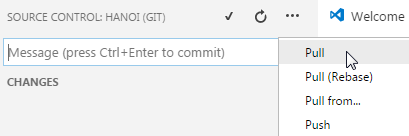 | pull changes from the shared project directory to the locale | Already up-to-date. - project branch is equal to local branch, there are no changes to pull |
git add | 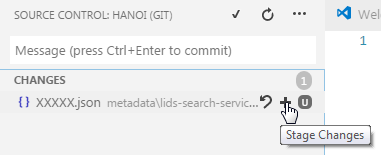 | you can not commit newly created files directly, you must first add them to the working tree | git add . - adds all newly created files; git add path_to_file - ads specific file |
git reste path_to_file | 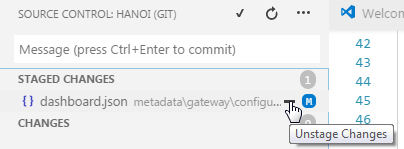 | removes changes from the local working tree, can be used if we do not want to commit some of the changes made | git reset --soft HEAD~1 - removes all changes made, returns project to the state after last pull |
git stash; git stash drop | 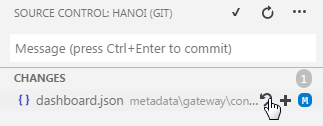 | the changes can be deleted completely, but you must first remove them from the working tree | |
git commit |  | confirming existing changes and storing them so that they we can return to them later, at the same time cleans the local working tree, must be supplemented with a message, see below | |
git commit -am "com msg" |  | Message about commited changes, serves to obtain overview of the project developement | |
git push | 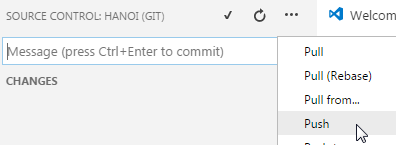 | uploads local changes to shared project directory | |
git pull + git push | 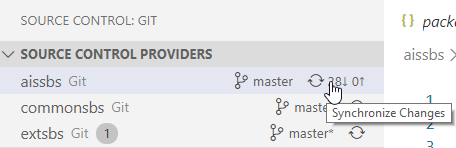 | combines git pull and git push commands | working only with cleared working tree |
git merge branch_name | merging multiple branches | git merge origin/master safe version of pull, merging local branch with main project branch | |
git stash | saves the current state of the local branch by the side and clears the working tree | ||
git stash pop | uploads the state saved by the side into the working tree | ||
git branch | lists all the project branches, current with * | ||
git checkout -b branch_name | creates a new branch to load a different version of the project, by default, the most up-to-date version | after the command we can add commit_id or commit tag, indicating which version we want to add | |
git checkout -d; git checkout -D | deletes a branch; -d branch is not deleted unless it is linked or contained in the parent branch |
Typical scenarios - Projection of local changes to the server
Changes to the project are first performed and tested locally and then projected onto the server. There are several types of changes made. This can be a file modification, creating a new file, or deleting an existing file. For uploading changes to the server, you first need to check if all changes are stored on the local. You can recognize the unsaved changes by displaying a point mark next to the file name in the bookmarks, and by the number of changes in the side panel in Explorer section.
After saving the changes, we need to add them to the working tree, see the git add command. If we decide that any of the changes we do not want to be sent to the server, we can individually remove it from the work tree, see the git reset command. The commit command combined with the message then confirms all the changes and clears the contents of the working tree. We will send the changes to the server via the git push command.
Solving conflicts - Diverging branches - local and main project branch
This situation occurs when the same files are being edited by more than one person at the same time, and one of them uploads their changes to the main project branch. The git status statement in this situation will list the message: Your branch and 'origin/master' have diverged. There are more solutions to this problem. The safest is to proceed as follows.
- Save your changes by side (
git stash) - Load changes from main project branch to local (
git pull) - Load changes saved by side to your working tree (
git stash pop)
At this stage, a further conflict may occur if the file has been modified on the same line, or GIT can not automatically resolve merging files. In the terminal, the following error message will appear in this case:
Auto-merging metadata/gateway/configuration/applications/samo/metadata/client/cockpit/pages/dashboard.json

CONFLICT (content): Merge conflict in metadata/gateway/configuration/applications/samo/metadata/client/cockpit/pages/dashboard.json
Conflict needs to be resolved manually. The situation looks in the dashboard.json file as follows:
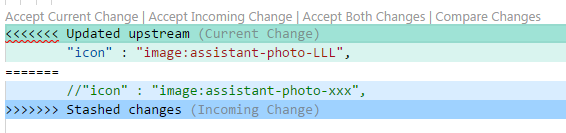
Current Change indicates the current status in the shared repository and Incoming Change indicates the change we wanted to upload into the working tree. In this case, we have several options to solve this conflict manually.
- Accept Current Change - current state of the repository won’t change
- Accept Incoming Change - take over our change
- Accept Both Changes - take over both changes, both rows of the file are preserved
- Compare Changes - works only to compare changes, diverging parts of the file are marked
After manually solving the conflict we can continue in the terminal with commands:
- Add new files and confirm changes (
git add .,git commit -am "commit message") - Upload changes to shared project directory (
git push)
Change histories
Within the project, we distinguish two types of change histories. The first is the history of local changes that relate to their own local branches. The second type is the global changes made by individual users to the main project branches in the shared project directory. Each change has its identifier, which is used, for example, when we want to return to the previous state of the project. It is also possible to assign changes to the tag. Currently, it is only used for Samo Gateway. We can look at all of these changes in Git GUI or GitLab.
In Git GUI, we get to the history of changes through Repository -> Visualize All Branch History. Finally, we can see the tree of all changes with the date and author, who made the changes. We can click on each change and see the direct file changes. The next window then displays a list of modified files.
In GitLab, the changes are located directly on the project page. In the left panel, we find Repository -> Commits, where individual changes, together with their commit message and author, are sorted by date. Changes can also be browsed directly.
Gitlab
All our projects are being stored on our private gitlab. Gitlab is a web-based git repository (similar as Gitlub, which is primarily used for open source projects, as everything on Github is public). The aim of Git is to manage software development projects and its files, as they are changing over time. Git stores this information in a data structure called a repository. Such a git repository contains a set of commit objects and a set of references to commit objects. A git repository is a central place where developers store, share, test and collaborate on web projects.
However, Gitlab nowadays provides more functionality for development. One of the big differences between GitLab and GitHub is the built-in Continuous Integration/Delivery of Gitlab. CI is a huge time saver for many development teams and a great way of QA (nobody likes pull requests that break your application). More on github and gitlab can be found here: https://usersnap.com/blog/gitlab-github/.
Using Gitlab
For logging in the Gitlab use LDAP login credentials (same ones you use to log in to your computer).
List of our internal projects is available at: https://gitlab/explore/projects List of our external projects is available at: https://git.asseco-ce.com/dashboard/projects
In the Activity tab you can see latest commits. Detailed overview of the commit with changes made can be seen by clicking on commit id. Title of the commit is the commit message, which was written when user committed his/her changes. Therefore, be sure to write short and understandable commit messages.
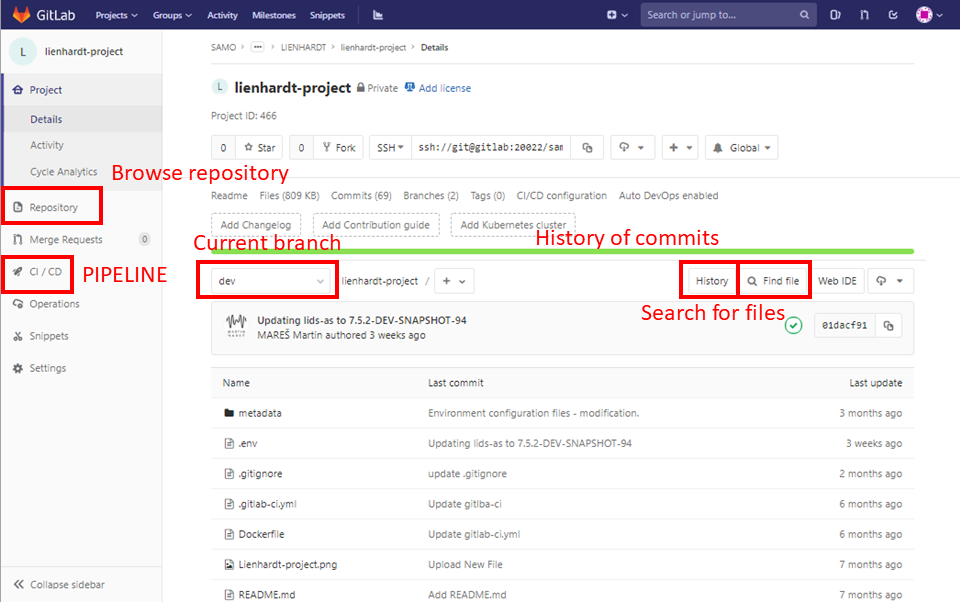
On the project page (when clicking on chosen project) you can see the repository structure according to the selected branch. You can also check history of commits or look for the history of the specific file (first you search for the file and then click History). You can also browse repository using left panel (tab Repository) for files, branches, tags, commits and various statistics. Another important tab in the left panel is CI/CD which shows overview of continuous integration. In the section Pipeline you can manually run pipeline, which is needed to publish changes from all packages (dependent git repositories) to the application server. On the conventional (unpackaged) projects this pipeline is being ran automatically, because changes are made right and only in this project repository.
Known issues
Errors
Git remote HTTP Basic: Access Denied
This error occurs after trying to pull or push metadata. If you run it from the console, this is the detail error message:
C:\dev\gitlab\samo\customers\spu\metadata-packages\<project-name>\git pull
remote: HTTP Basic: Access denied
fatal: Authentication failed for 'https://git.asseco-ce.com/SAMO/customers/spu/metadata-packages/<project-name>.git/'
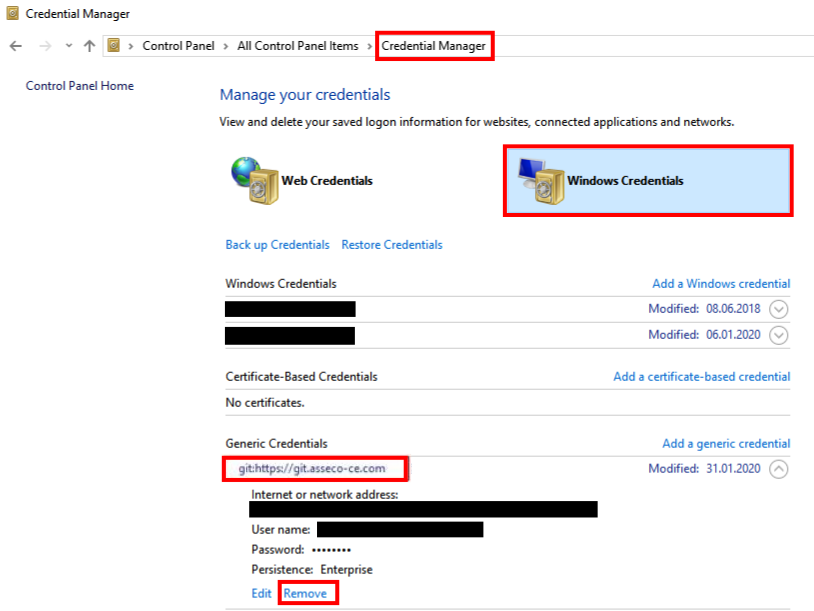
This error can occur after changing your LDAP credentials. The solution is to remove your old stored credentials and replace them with new ones.