SAMO Icon sets
Level: Beginner
Keywords: icons, icon sets
The result: integration of icon set to project, now it is possible to include icons in SAMO metadata by simple COPY->PASTE
WHAT are icon sets
Icon set is a summary and an overview of all icons from a specific domain, usually a project. At the moment it is updated and administered in GitLab by Zuzana Odstrčilová, but in the future we assume that each project could have access to this administration for their own designer. All iconsets are available in the Icons library (internal). Since the Dynamic-App version 8.1, iconsets are also using namespaces which enables groupping of icons inside project iconsets according to the area of uasge (e.g. samo-icons-action, samo-icons-alert). They also ensure more options for the icon names, since the different namespace in the end creates different unique icon id.
There are currently three different types of iconsets:
1) SAMO iconset
SAMO iconset can be founf in Icons library (internal) contains icons, that are directly used in Dynamic-App (e.g. arrows asi "back" action, control tools in lists and maps and others), and often cannot even be changed in the configuration. There are also other icons, which are very often used in configuration (e.g. samo-icons:map-place icon used for Show in map intent), BUT it cannot be ensured that they will not somehow change in future versions. However, the right usage in Dynamic-App will be ensured. Still, if you want to use some icon from the SAMO iconset in your project, you should copy its source to your project iconset in the GitLab repository. This iconset is distributed along with the Dynamic-App, which means, that it is available for usage by default and does not need to be added to your project (opposite to Project iconsets).
2) PROJECT iconsets
Project iconsets contain all icons, which are defined in configuration (icon of entity type, icon for intent, icon of menu items, dashboard icons and others).
It is highly recommended creating own iconset for each project. By the iconset created directly for your project it is ensured that the icons will be managed specificly in the project and will not change in the future.
3) MATERIAL iconset
MATERIAL iconset can be found in Icons library (internal) contains icons, which were previously used from Polymer. Since the Dynamic-App wanted to get rid of this dependency, these icons were copied to our own iconset for maintainance. Now these serve as a library of possible icons, for inspiration. However, this library is too big to be used in the project as a whole. If you want to use any of the available icons in your project, you need to copy their source to your project iconset in the GitLab repository. This is also the reason, why this iconset is marked as READ ONLY in the Lighthouse.
WHY use icon sets
Using icon sets for your project is recommended for several reasons. Main advantages are:
- you don't need to create your own icons or deal with autorship issues
- we have a professional designer, who will follow your requirements but take care of design rules, logic and maintain icons user-friendly
- our icon sets are based on Material design icon set (icons are designed in the same style)
- icon sets bring order to the project sturcture (no more mess in
resourcesfolders) - correct format supporting advanced UI behaviour
- simple usage (COPY->PASTE once you add icon-set to your project)
- all in one place - nice overview of all project icons, when you search for some
It is highly recommended to use icon sets only! If you use png icons, you will have problems with colouring of icons in the whole application.
HOW to use icon sets
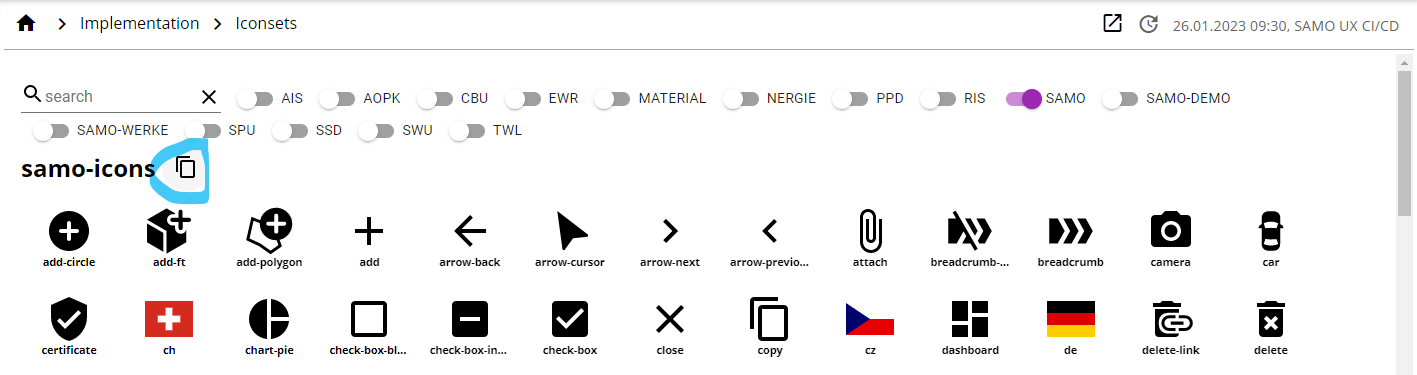
All SAMO project use samo-icons icon set by default. It means you can use icons from this set simply by copying the icon path (click on the icon) and including it in the SAMO metadata. However, samo-icons icon set contains only basic icons and your project will probably need more. It is recommended that each project has its own icon-set. For creation you can contact our UX Designer. Presuming the icon set you wish to use already exists, following steps will help you to include it in your project.
-
Create new JavaScript (
.js) file for the icon set in the/resources/iconsfolder. You can use custom name, but we recommendprojectName-icons.jsnotation. The content of the file corresponds to the iconset source code, that can be found in Icons library (internal). Source code for icon set will be copied to your clipboard if you use copy icon next to the icon set name. -
Include the icon set in the application, specifically in the
boot.jsfile. Search forextraResourcesarray and add following code:bootHelper.prepareScriptResource("resources/icons/iconSetName.js")
    extraResources: [
        bootHelper.prepareScriptResource("resources/themes/samo.js"),
        bootHelper.prepareScriptResource("resources/icons/material-icons.js"),
        bootHelper.prepareScriptResource("resources/icons/ais-icons.js"),
    ]
-
Reload Gateway configuration.
-
Click on the desired icon and paste the icon path in the SAMO metadata.
"icon" : "samo-icons:done"