Overview
Level: Advanced
Keywords: SAMO Browse, application page, browse, filtering, advanced filter
The result: SAMO Browse with advanced options configured
This page lists advanced options of configuring SAMO Browse module. The very basic information about SAMO Browse can be found in Getting started manual, all configuration options are available in Dynamic-App Module Catalog.
Samo-browse default view types
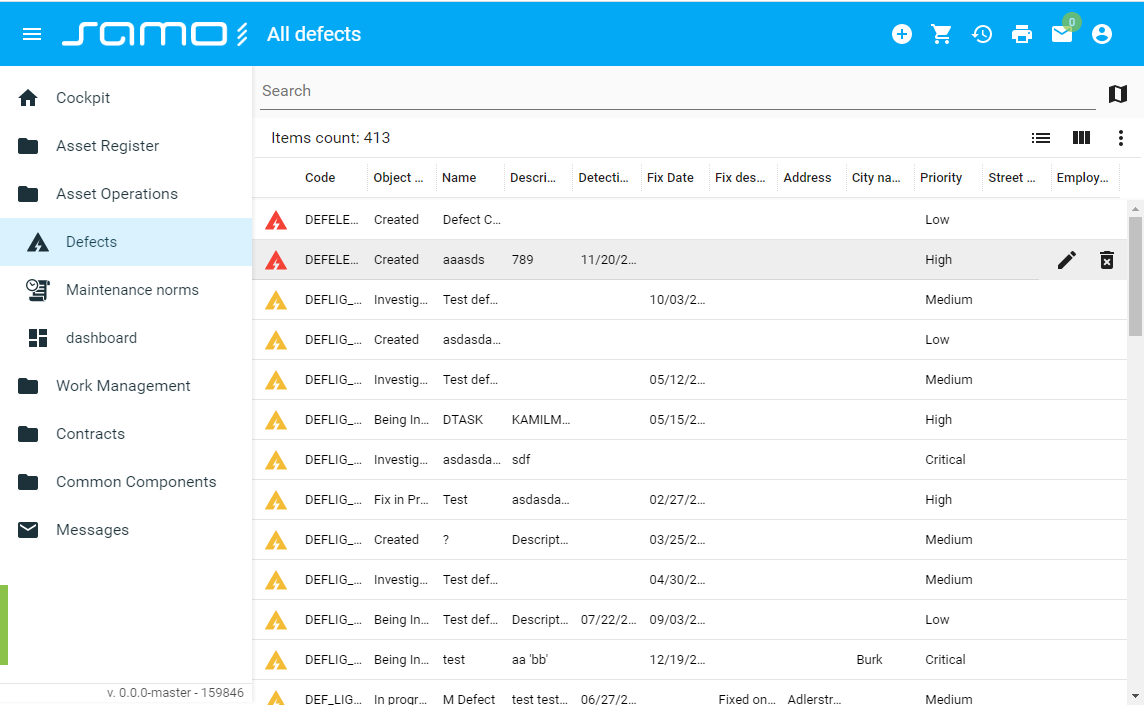
Samo-browse is a complex web module with a range of very different display types. Browse module can look either like map or a table. It is possible to configure, which of these views should be the default (the one which is displayed after the browse initialization) using the defaultView configuration parameter. User is able to switch between these two view types, unless the canChangeView configuration parameter is set to false.
Map view
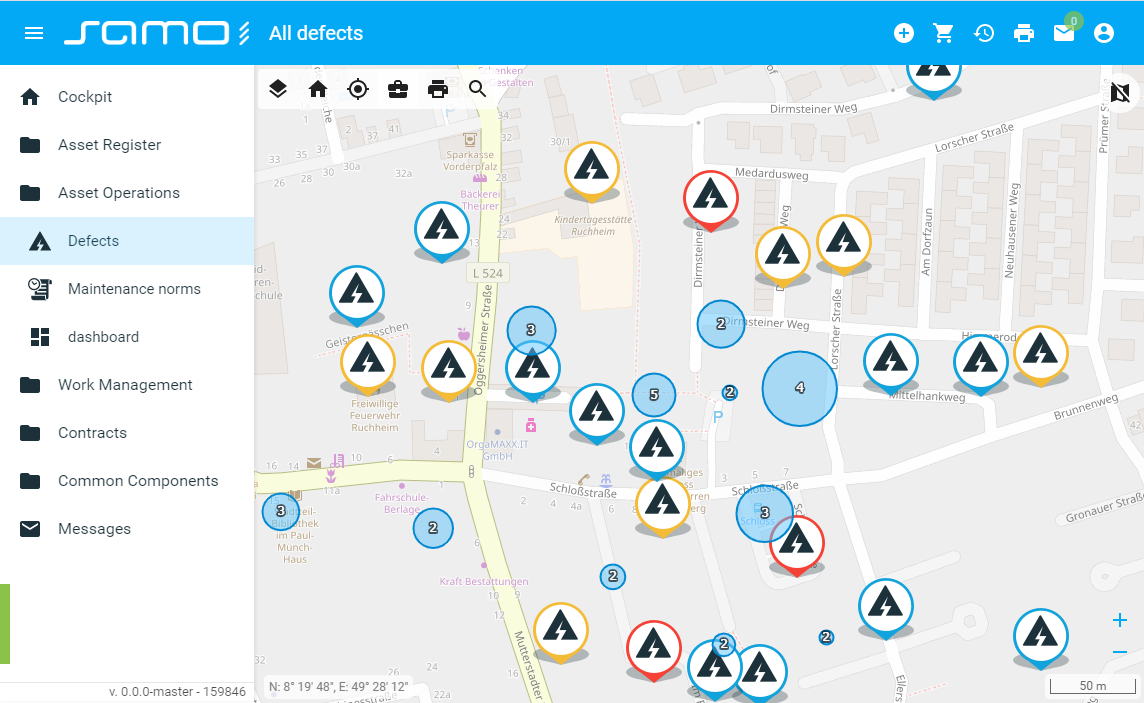
Table view
Samo-browse List view types
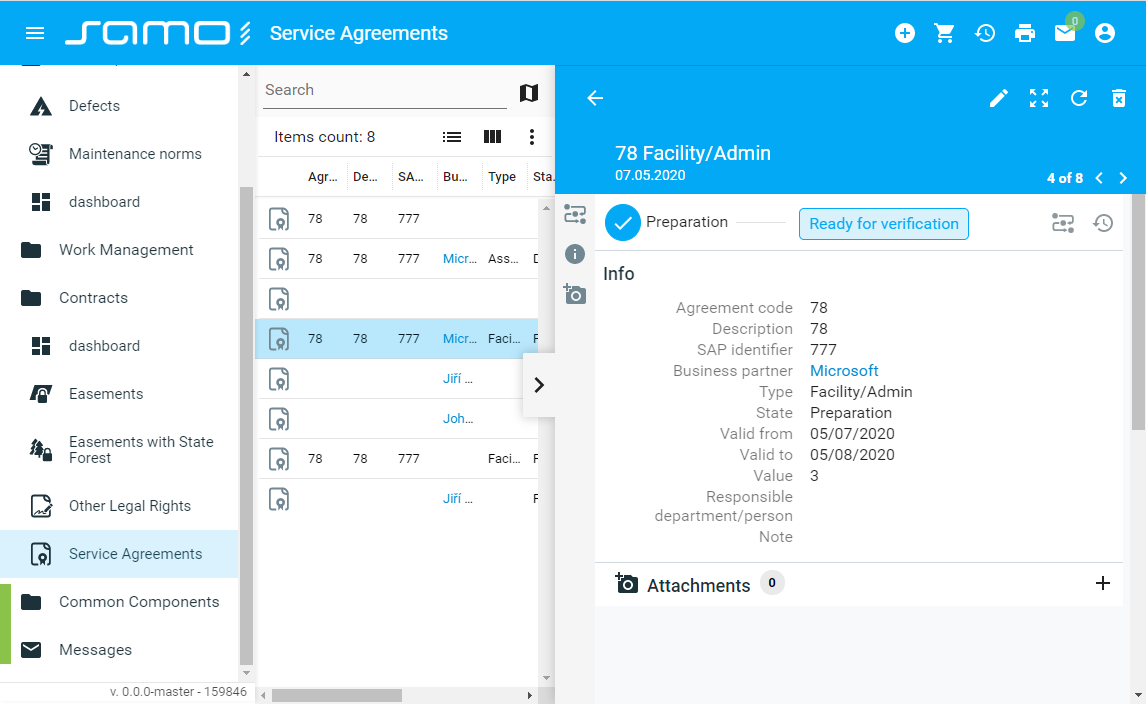
Apart from the map and table view there is also a list view, which can be stretched to the fullscreen, or used in a combination with entity detail. There are several options for list view. The default list view is set by listDisplayType configuration parameter. Posible options, which can user switch between are defined in listDisplayOptions. If you want to disable the list view, for example when you want to only show a map and detail next to each other, set detailOnly configuration parameter to true.
Simple list view type
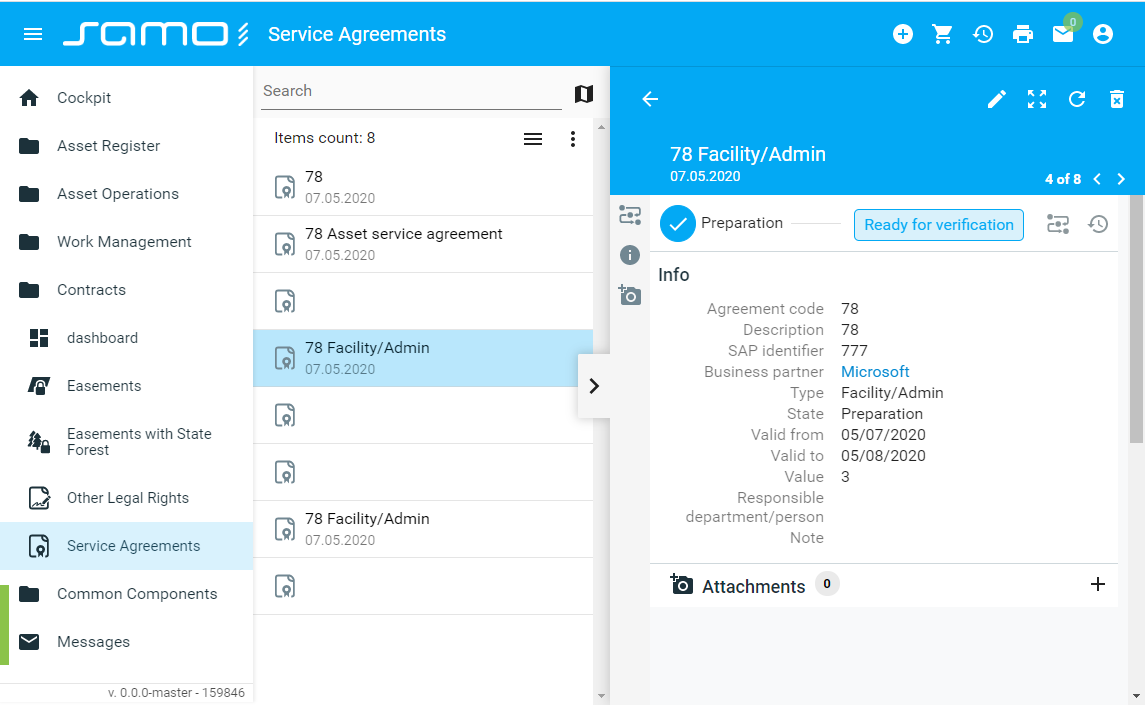
List3 list view type
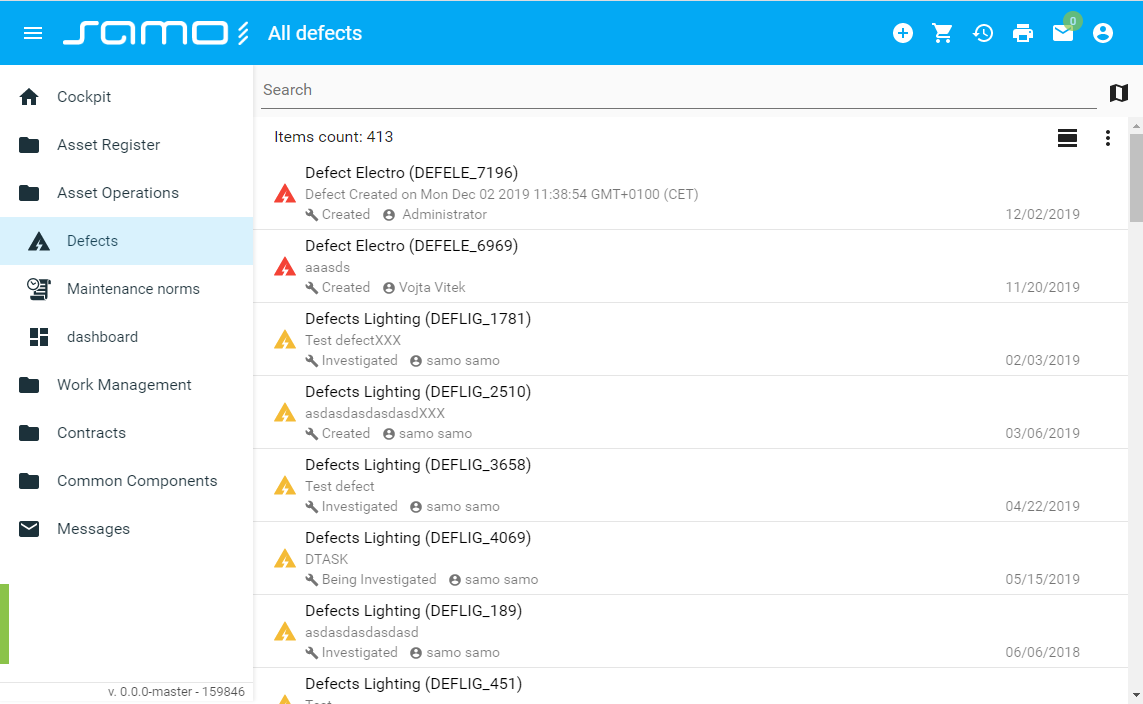
Tiles list view type
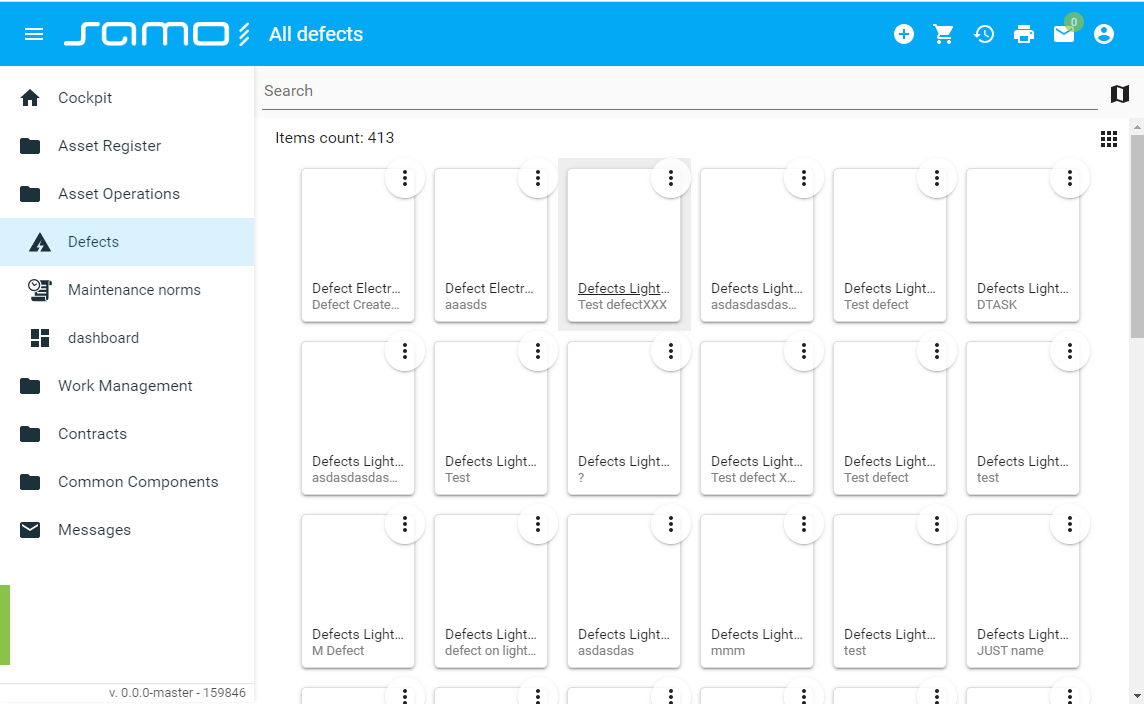
Table list view type
Samo-browse layout
The application layout is influenced also by the size of the display device and by default all web components are responsive. This means that your layout will change automatically, but you can override it for your specific needs.
Menu visibility
First of all, it is possible to define, wheather the menu should be visible on browse initialization, or only after unpacking it. For the menu to be closed on initalization, set closeMenu configuration parameter of entire application page to true. If you want to hide the menu completely (along with the icon), you can set hideMenu configuration parameter of entire application page to true.
Fullscreen vs. split layout
Apart from changing browse view types, there is a posibility to split the application window to different sections, or use one view type on fullscreen.
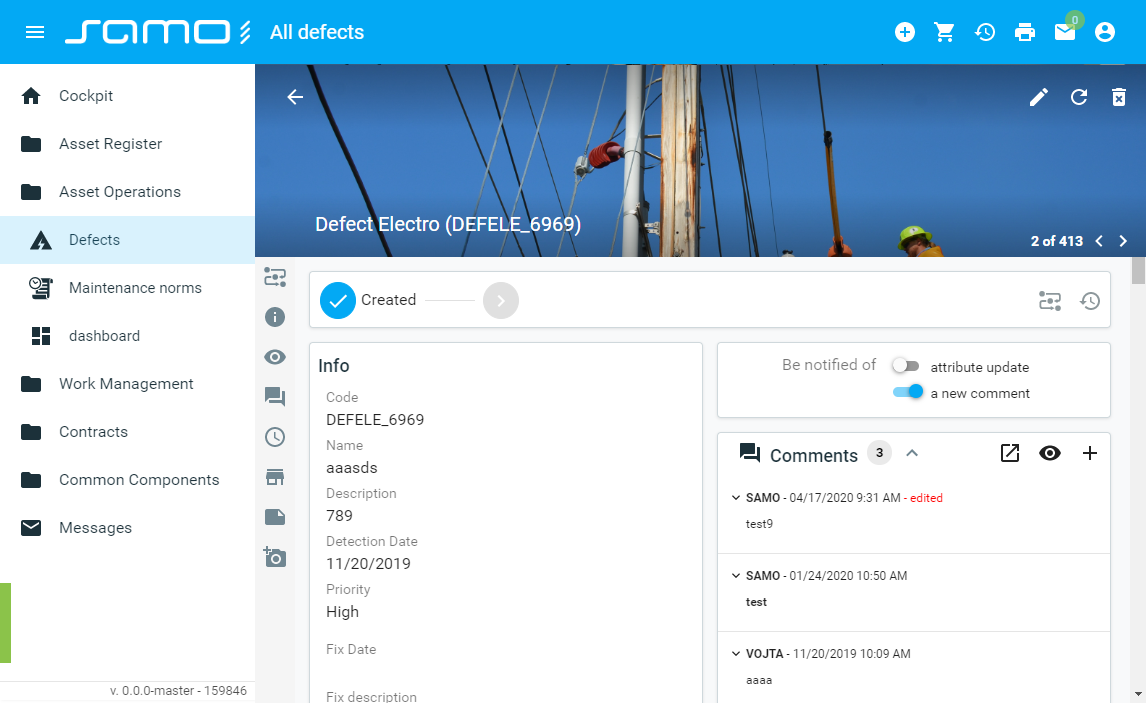
By default, split layout combining both the map and list (or later an entity detail) is used.
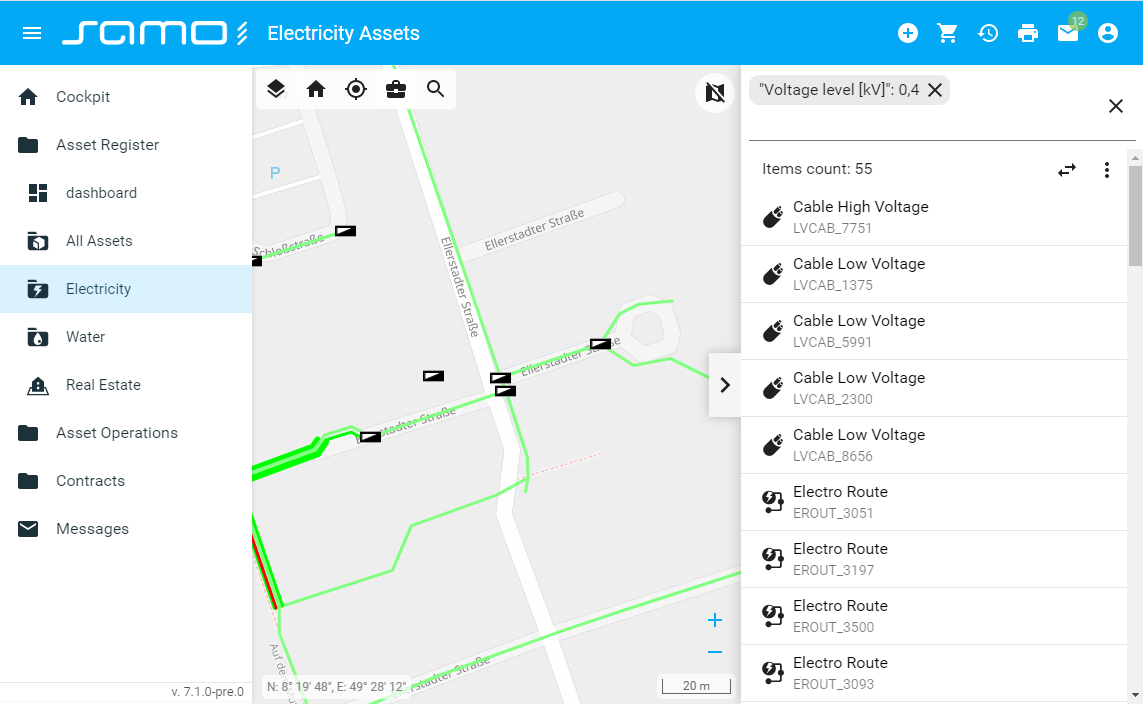
If you want the section reserved for detail and list to be wider, set wideDetail configuration parameter to true.
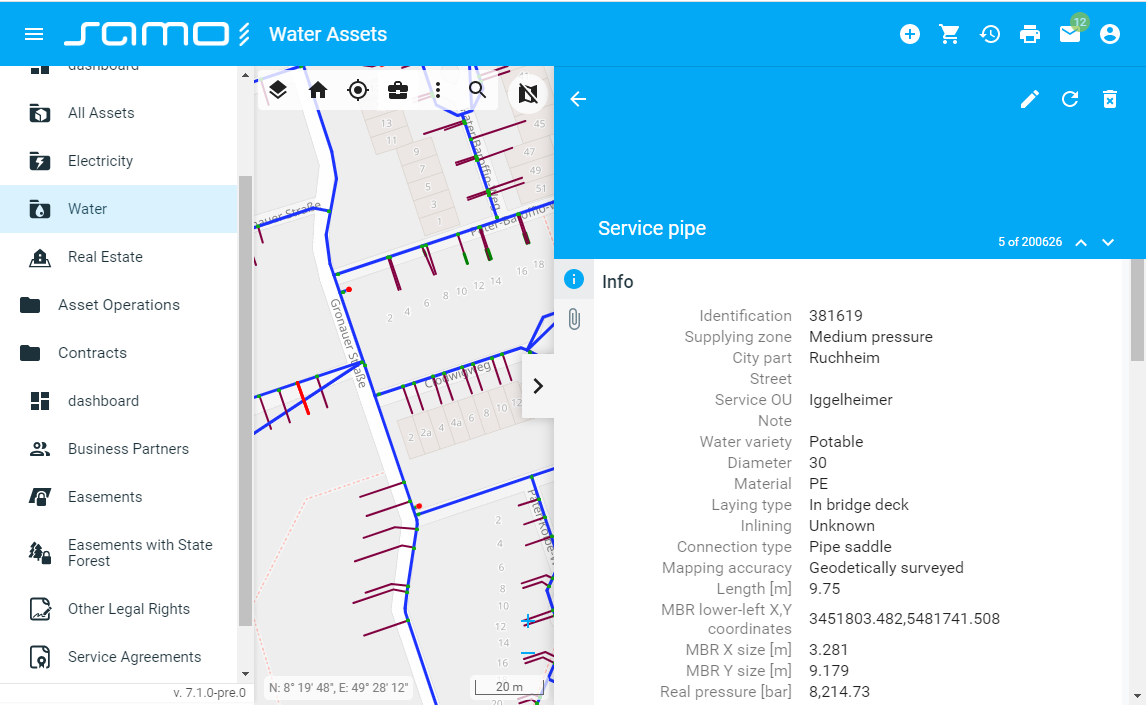
For fullscreen behavior you need to set fullscreenDetail configuration parameter to true. Depending on wheather you want to see the SAMO Browse in map or table view on the initialization, you need to define the defaultView parameter. Fullscreen detail view is not possible to be set by this parameter, it will be opened only after opening specific entity, or if you use some Browse filtering options.
Samo-browse search options – filter settings
Using the default SAMO Browse filter, it is possible to search for records using:
- fulltext search
- values of codelist attributes
- simple mathematic conditions (> < = ≤ ≥ ≠) for number or date attribtues
- combination of these
Each condition is represented by a chip in search input, these chips are used to filter records with AND logical operator by default (can be set to OR operator by search.defaultFulltextOperator configuration property). To create a complex condition with OR operator it is necessary to use Advanced filter.
SAMO Browse also enables sorting (descending or ascending) of all records based on multiple attributes.
Current „state“ of the Browse (including set up of filter and sorting) can also be saved as a custom view or object of interest. These views are stored for each user, or shared among groups of users. This enables quick load of frequently used filters, even if they are more complex.
SAMO Browse allows also configuration of Advanced filtering options, providing the possiblity to combine multiple conditions using both AND and OR logical operators.
Considering browse filter configuration, it is important to distinguish between the temporary state of the browse filter and global (fixed) browse filter settings.
Temporary browse filters
The temporary state is the specific filter preset, which was manually chosen by the user, or loaded after navigating to the browse from navigation widget. These filter presets can be easily stored for example in Favourite links or Objects of Interest as URL address and loaded anytime again.
To set up the filter of browse page on the first initialization, we need to change the configuration of the navigation widget, which refers to it. In the arguments field, we can define, which properties are used for filtering.
Basically everything, which can be configured through this property is shown in the application url, e.g.:
https://demo-dev.ivp-samo-as1.assecosk.local/#defects/defects-lighting!detail=ft_defDefectLighting/390164408110569114292395909600&view=map&search=at_defBoDefect__description:%22_exists%22%7Cat_defBoDefect__c_priority:4&sort=at_defBoDefect__description,asc&n_x=3451678.663885608&n_y=5481790.3971257955&n_zoom=9
In the url, after the port on which is the application running we have application part (defects), application page (defects-lighting) and then other various configurations in following table. In url, percent encoding is used (e.g. %20 means space; %7C means '|' = AND operator).
| key | example value | description |
|---|---|---|
| search | at_defBoDefect__description:%22_exists%22%7Cat_defBoDefect__c_priority:4 | Browse now only shows features which have specific values of given attribute. It is possible to add more filtering conditions using logical operators (AND/OR). You can also use template strings. In chart widgets there is a specific {get:#key} setting, which searches for every value of given attribute (this is used for chart labels, see description of these widgets). |
| filter | used for Advanced Filter, same logic as by simple search filter | |
| view | table / map | browse display option |
| sort | at_defBoDefect__description,asc | Features in table will be sorted ascending based on given attribute. Descending option (desc) is also possible |
| detail | ft_defDefectLighting/390164408110569114292395909600 | Used when specific feature's (ftid/fid) Information detail should be visible |
| center | true | |
| n_x | 3451678.663885608 | X coordinate to which map should be centered (float numbers are prefixed with n_) |
| n_y | 5481790.3971257955 | Y coordinate to which map should be centered (float numbers are prefixed with n_) |
| zoom | 9 | level of map zoom |
        {
            "arguments": {
                "search": "at_boDefect_cl_boDefectState:1 2 3 5 7"
            }
        }
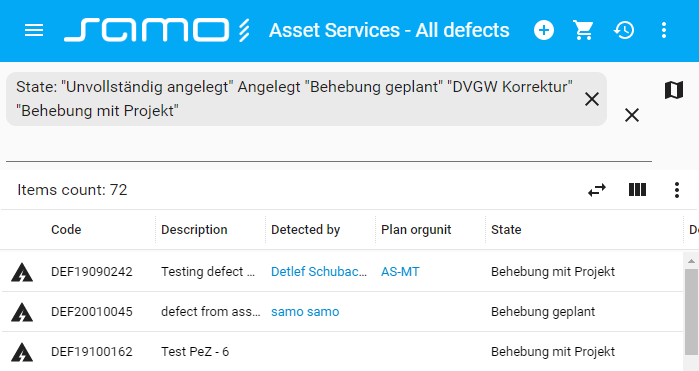
Fig. 1: Example of temporary browse filter set up
The temporary browse filter can be predefined by configuration property search. User can cancel or edit it in search input.
Global browse filter
Apart from the temporary state of the browse filter, we can also change its global (fixed) behavior and options using query configuration parameter. It contains configuration for the Elastic Search, which returns requested feature instances. In the query parameter you can specify, which instances should be visible in the Browse, based on their attribute values. This configuration basically extends the entitiesGroup parameter, which only designates allowed feature types. This filtering is permanent and cannot be canceled by user.
Elasticsearch provides a full Query DSL (Domain Specific Language) based on JSON to define queries. It enables three types of clauses:
- Leaf query clauses look for a particular value in a particular field, such as the
match,termorrangequeries. These queries can be used by themselves. - Compound query clauses wrap other leaf or compound queries and are used to combine multiple queries in a logical fashion (such as the
boolordis_maxquery). - Expensive queries certain types of queries will generally execute slowly due to the way they are implemented, which can affect the stability of the cluster.
More information is available in the official Elastic Search Documentation.
    {
        "query": {
            "must": [
                {
                    "type": "range",
                    "field": "at_koloNabidky_datumVypsaniKola",
                    "includeUpper": false,
                    "includeLower": false,
                    "from": "{today:}"
                }
            ]
        }
    }
In the following query clause example, these conditions must be met:
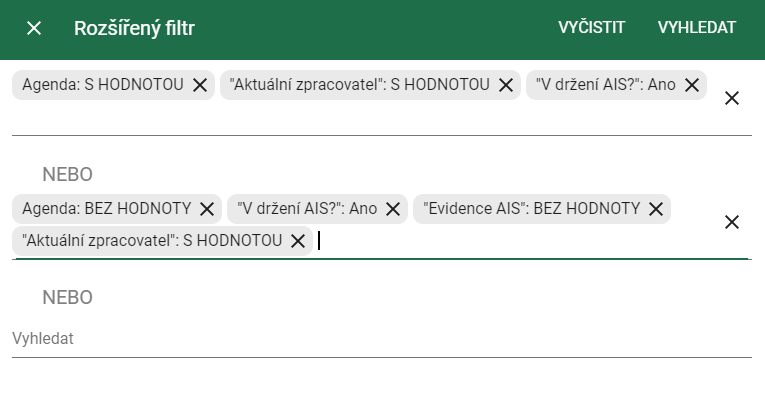
Fig. 2: Example of compound browse query
    {
        "query": {
            "must": {
            "type": "bool",
            "must": [
                {
                "type": "disMax",
                "queries": [
                    {
                    "type": "bool",
                    "must": [
                        {
                            "type": "terms",
                            "field": "at_spis_an_vDrzeniAIS.ca_anoNe_id",
                            "values": [
                                "1"
                            ]
                        },
                        {
                            "type": "terms",
                            "field": "at_spis_userIdPuvodni.ca_uzivatelSystemu_id",
                            "values": [
                                "{user:#id}"
                            ]
                        }
                    ],
                    "should": null,
                    "must_not": [
                        {
                            "type": "exists",
                            "field": "at_spis_cl_agendaRizeni.ca_agendaRizeni_id"
                        },
                        {
                            "type": "exists",
                            "field": "at_spis_cl_evidenceAIS.ca_evidenceAIS_id"
                        }
                    ]
                    },
                    {
                    "type": "bool",
                    "must": [
                        {
                            "type": "terms",
                            "field": "at_spis_cl_agendaRizeni.ca_agendaRizeni_id",
                            "values": [
                                "{get:#_entity.at_dokumentzEspisu_cl_agendaRizeni.ca_agendaRizeni_id}"
                            ]
                        },
                        {
                            "type": "terms",
                            "field": "at_spis_an_vDrzeniAIS.ca_anoNe_id",
                            "values": [
                                "1"
                            ]
                        },
                        {
                            "type": "terms",
                            "field": "at_spis_userIdPuvodni.ca_uzivatelSystemu_id",
                            "values": [
                                "{user:#id}"
                            ]
                        }
                    ],
                    "should": null
                    }
                ]
                }
            ]
            }
        }
    }
Query configuration is used in the SAMO Browse module, but also in other web modules, which provide a browse of features inside, such as related-entity-list, samo-entity-list-input.
Debugging & Help
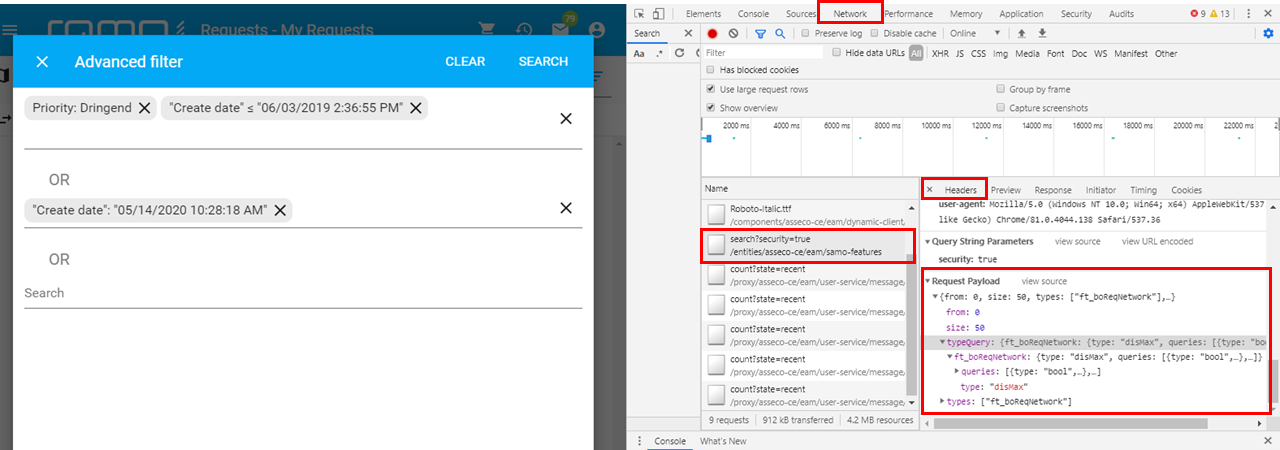
Query configuration can get pretty complicated. When trying to implement it, it is recommended to set up the filter manually in the application by clicking and selecting desired attributes and their values. Then (after clicking on Search / executing the query) it is possible to catch the request (in the Network tab of the Browser Developer Console).
Filter by related entity attributes
If we want to filter features in browse based on attribute of their related entities, we can use additionalFilterProperties parameter. For example in the browse of all projects, using following definition, we will be able to filter Projects also based on the Constructions code and elak attribute. Both attributes will be added to filtering attributes selection menu. If we want to hide some filtering attributes from selection menu, we can use hideFilterProperties. If some attribute is in the additionalFilterProperties and at the same time in the hideFilterProperties, user is not able to use this filter, but we can address it by URL, or shortcutting from other application parts.
    {
        ...
        "additionalFilterProperties": [
            "ft_boConstruction.at_boBaseAct__elak",
            "ft_boConstruction.at_boSamo__code"
        ]
        ...
    }
Appart from this simple definition of additional properties, we can also use asterisk notation (* - stands for any string) and feature relations. Notice that by combining multiple associations and role feature types, we can easily get the properties of more deeply linked features.
    {
        ...
        "additionalFilterProperties": [
            "ft_boConstruction.at_*",
            "as_*/ft_boCnsAsset/as_boCnsAss_boConstruction/ft_boConstruction.t_boCns__cl_boCnsState",
            "as_*/ft_boCnsAsset/as_boCnsAss_boConstruction/ft_boConstruction.at_*"
        ]
        ...
    }
Advanced filtering options
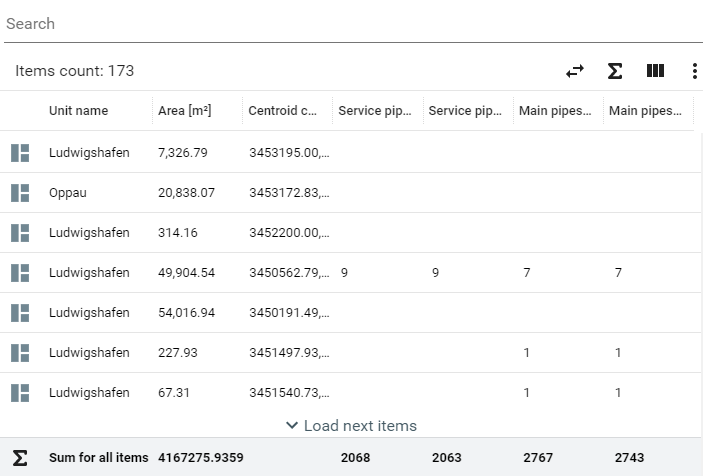
For more complex options of filtering it is possible to use Advanced Filter (by setting allowAdvancedFilter to true). Advanced Filter enables creation of nested OR and AND conditions (Figure 1) and can be also combined with simple filter. It can be set up manually in the SAMO application and the resulting configuration will be then added to simple filter temporarly (Figure 2), or it can be configured using filter parameter in the same way as search, see table in Temporary browse filters.
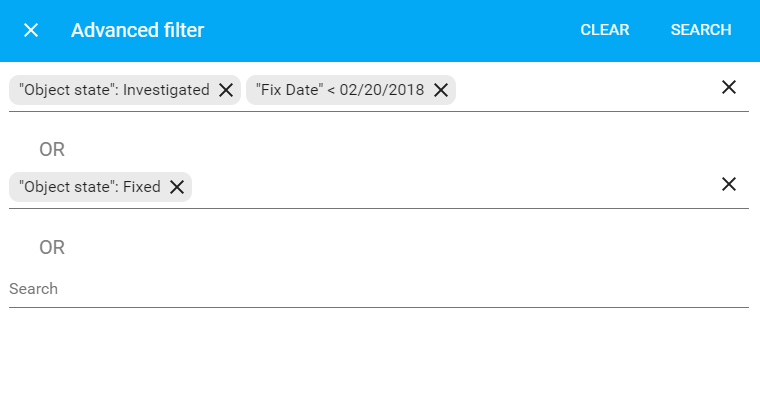
Fig. 3. Example of Advanced Filter
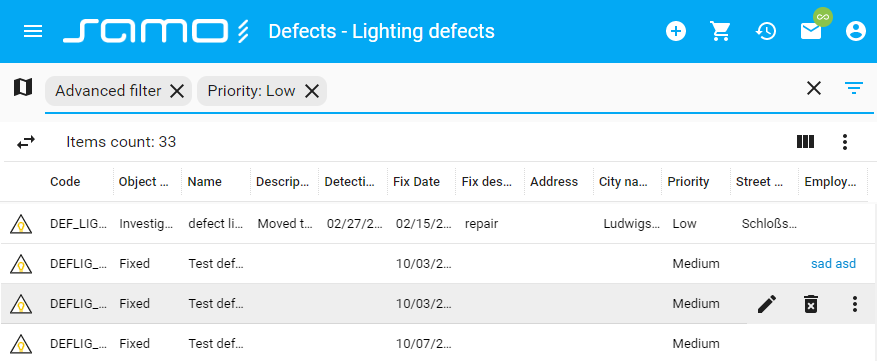
Fig. 4. Combination of Advanced and simple Filter
Browse user views
SAMO Browse is able to switch between different views. View is a combination of filter, sort and list of columns. The views are stored in LIDS settings and can be shared across users. User can store the current state of the browse by creating a new view just for himself or share it. Afterwards it is possible to update or delete created views.
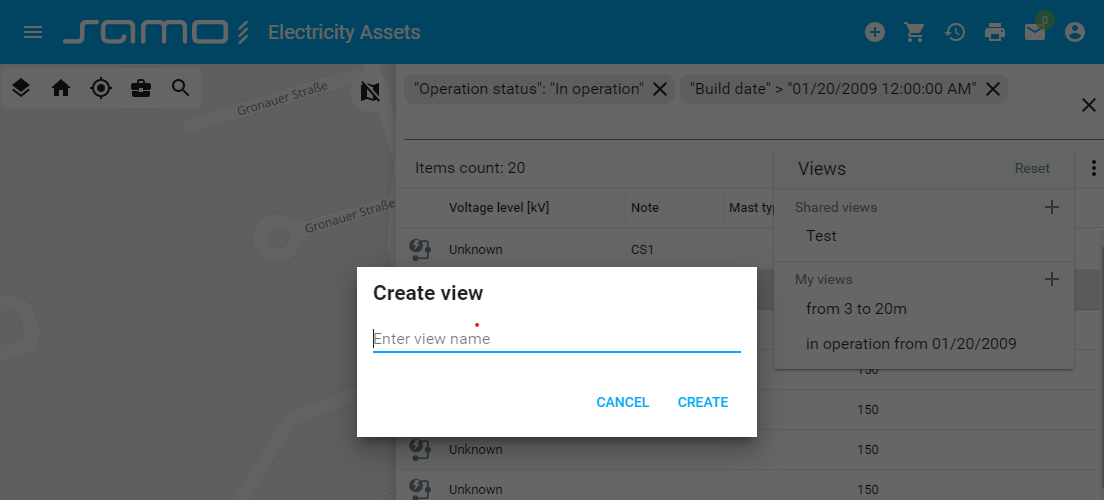
To enable view manager set listViewsEnabled configuration parameter to true. Don't forget to define also the browse id.
    {
        "type": "component:entity-modules/browse/samo-browse",
        "id": "unique_id_of_this_browse",
        "listViewsEnabled": true
    }
Universal Browse for all features
To configure which data will the browse show we mostly use entitiesGroup parameter. Browse will then show all feature types contained in predefined entity group. To create universal browse for all entities, we can use parameter allEntities. The title of browse page is generated dynamically according to shown feature type. Universal browse should be placed in some base package in ...common/pages.
    {
        "module": {
            "type" : "component:entity-modules/browse/samo-browse",
            "security": {
                "loggedIn": true
            },
            "defaultView"   : "table",
            "search" :{
                "default" : ""
            },
            "canEdit": false,
            "allEntities": true,
            "canChangeView": false
        }
    }
Browse summarization row
There is a possibility to add a summarization row to SAMO Browse in order to see aggregated values of numeric attributes. This row can be displayed and hide by user after clicking on summarize icon in the Browse table header. Summarizing option is only available in table display mode. By default, this functionality is not present, you need to set columnAggregations configuration parameter to true. It is a good practice also to configure browse pagination (loadByPage set to true and define the number of itemsPerPage), so if there are too many rows, they will be devided to multiple pages.