Using packages in project
Level: Intermediate
Keywords: packages
The result: theoretical background of using packages on projects, implementation of packages
What are packages?
Packages are used to divide the configuration files (LIDS, Gateway, Dynamic-App and Business server metadata) based on application domains. Packages enable reusability of these parts and the semantic versioning is supported. Each package contains package.json file, where the basic definition of package and all its dependencies are stored.
    {
        "name": "@samo-demo/samo-demo",
        "version": "8.24.0",
        "configurationPackage": true,
        "dependencies": {
            "@samo/samo-base": "~11.6.0",
            "@samo-demo/lids-demo": "8.24.0",
            "@samo-demo/eam": "8.24.0",
            "@samo-demo/samo-tests-and-examples": "8.24.0"
        }
    }
For easier and more effective management of these packages, samo-package-cli tool was developed.
How to use packages in projects?
Packages source files are located on Gitlab, and distributed through the packages repository, which enables effective security management and versioning. It is also possible to include multiple packages in one Gitlab repository and thus make their management more efficient.
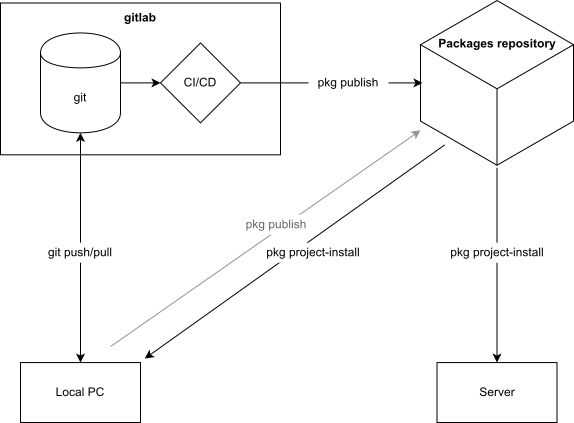
Fig. 2 How implementation works with packageing approach
1. Create Gitlab packages repository
Next to your Gitlab project repository (on the same level), create repository called projectName-configuration (e.g. samo-demo-configuration), and set up correct access rights for your project members. This repository should contain folder packages with all project related packages (if you are using other packages, e.g. samo-base, do not include it here). Among the packages folder, other optional files can be present, for example the CI setup (.gitlab-ci.yml).
2. Prepare/migrate the content of packages
Migrate your current project packages to the ../projectName-configuration/packages folder, or create new packages. The configuration of dependencies is following:
    {
        "name": "@samo-demo/samo-demo",
        "version": "7.7.0",
        "configurationPackage" : true,
        "dependencies": {
            "@samo/samo-base": "~8.3.0",
            "@samo-demo/lids-demo": "~7.7.0"
        }
    }
Notice also the configurationPackage parameter, which distinguishes configuration packages from project repositories (which also have package.json file) and package.json used for configuration of Dynamic-App components.
3. Change package.json in Gitlab project repository
Apart from setting the dependencies between packages, you also have to set the dependency in project repository for all project environments.
4. Upload packages to the packages repository
Upload of packages is possible automatically by Gitlab CI, or manually from the local environment. When uploading the packages for the first time, it is recommended to do it manually, by running command e.g. pkg publish -p @samo/test-package. @samo stands for project scope. Package names don't need to be completely unique. This approach enables packages of the same name under different scope. After uploading, packages are available for download for local project environments and also for distribution to server environments.
5. Allow & manage access
The access to packages is managed through the Package repository console: https://packages.samo-asseco.com/ using LDAP groups.
6. Enable read and upload by CI
The simpliest way of maintaining the same content of the source files on Gitlab and packages in packages repository is by using Gitlab Continuous Integration. It will ensure automatic upload of packages to the packages repository after any commit to the Gitlab repository. To enable this functionality, the access rights for the CI must be set for each package - this part is handled by SAMO support.
7. Manage packages versions
In order to ensure the same version of packages in server and all local environments (for the whole implementation team), they are being read from the package-lock.json. This file is created automatically on the first local project-install (running pkg project-install command from the project repository) and afterwards should be commited and pushed to Gitlab. Other implementators will than clone the project together with defined packages versions. Running project-install -u (with the -u option) will update the content of package-lock.json.
When releasing a new version you should follow these steps. Let's say that master branch is used to prepare version 1.2.0, which you want to release.
- Create a new branch 1.2.x. From here you will release the version and at the same time, the branch will serve for any hot fixes to the released version.
- Change dependencies in master branch to a new future version (1.3.0).
- Check if all dependencies on branch 1.2.x within used packages repository point in
package.jsonfiles to your desired version 1.2.0. If not, change them and commit the change to branch 1.2.x. - Release the version from the branch 1.2.x either by creating tag 1.2.0 directly in the Gitlab, or by running
pkg releasecommand from the used packages repository. - (optional) Perform changes to the released version by commiting them to branch 1.2.x and releasing new tags (1.2.1, 1.2.2 ...) according to the semantic versioning principle. Do not forget to merge these changes to the master branch, so they won't be lost in the next major version.

Fig. 3 How releasing new package versions works