New navigation page
Level: Beginner
Keywords: application page, dashboard, signpost, cockpit, navigation, shortcut
The result: page with navigation widgets
How to make new navigation page (signpost, dashboard)?
In SAMO there are two basic types of pages.
One is used as a signpost between application pages, or for navigating between other pages. This type of page is called a Dashboard page.
The second type of page server for visualizing the featureTypes (entities) and their attributes (properties). This type of page is called a SAMO Browse and can have multiple view types (list, table, map...).
This chapter will only describe how to implement Dashboard page. For implementing SAMO Browse see: New SAMO Browse.
Include new page to folder structure
All pages are located under the pages folder of the corresponding application part. See following folder structure:
dynamic-app
│
└───samo-demo\configuration
    │
    └───application\parts
        │
        └───ap_assets
            │
            └───pages
            │   │   pg_dashboard.json
            │   │   pg_assets-browse.json
            │   └───...
            └───part.json
More about folder structure of Gateway metadata and dynamic app metadata can be found in SAMO Lighthouse.
The name of the json is equal to the page id and must be unique within the application part. We usually use the name dashboard for the application part signpost.
Choose (and implement) Dashboard type
Currently, there are two dashboard types available. One with row layout (samo-category-dashboard)and second with single or two-column layout (samo-dashboard). They both differ in the configuration, see the following Configuration examples.
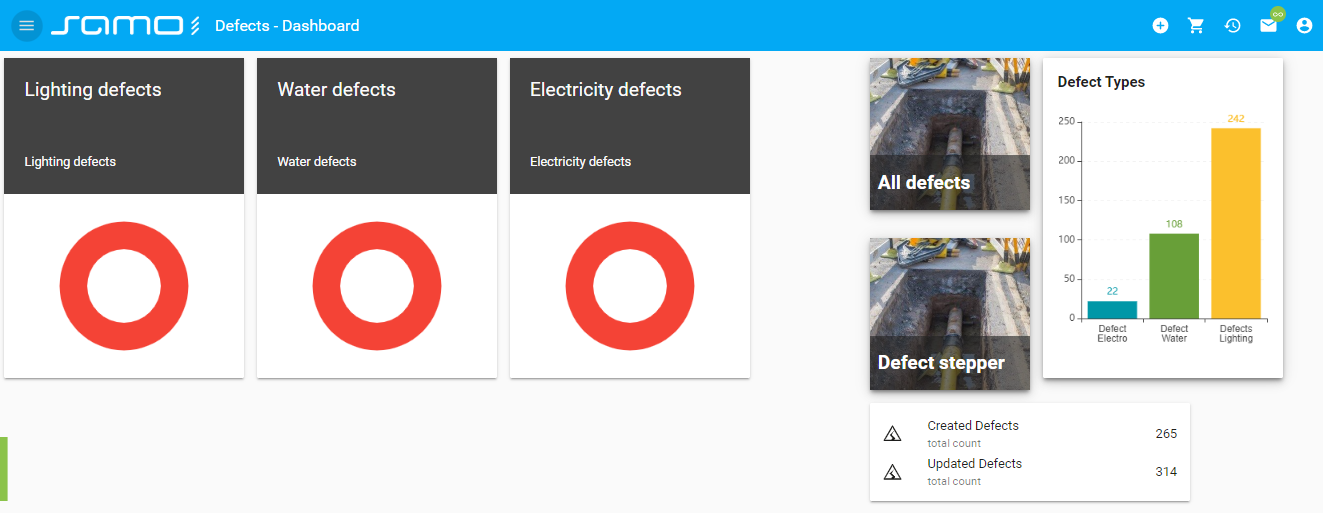
Fig. 1: samo-dashboard example
    {
        "type": "component:dashboard-modules/samo-dashboard",
        "widgets": {
            "left": [],
            "right": []
        }
    }
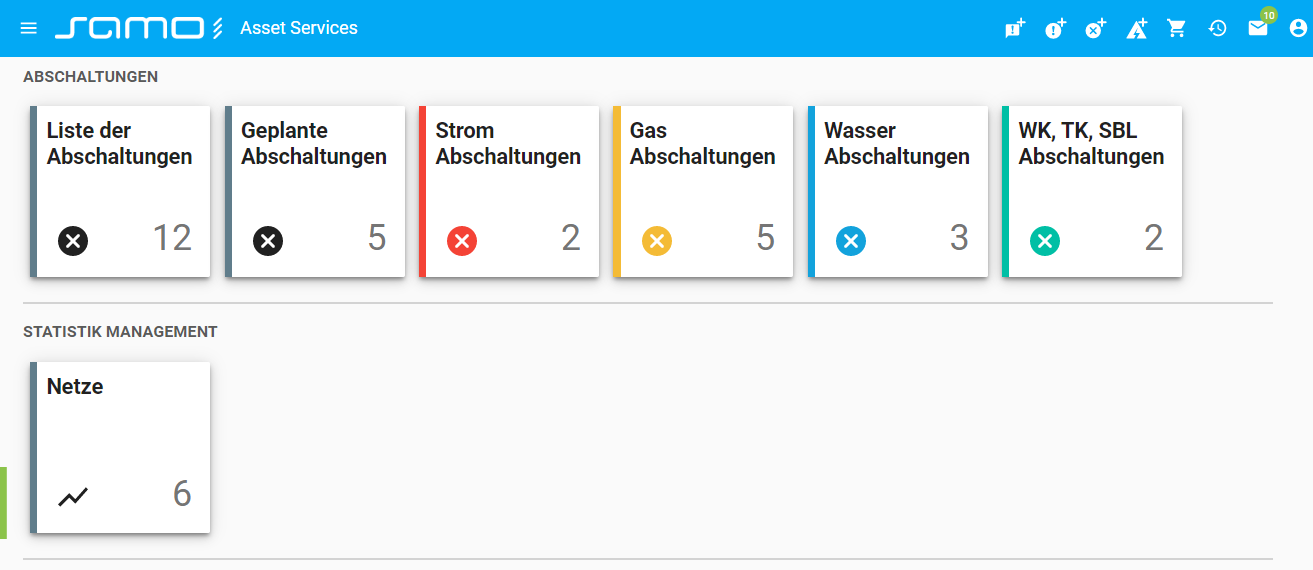
Fig. 2: samo-category-dashboard example
    {
        "type": "component:dashboard-modules/samo-category-dashboard",
        "categories": [
            {
                "title": "Category Title",
                "widgets": []
            },
            {
                "title": "Another category Title",
                "widgets": []
            }
        ]
    }
Choose (and implement) navigation (and other) widgets
The configurations provided above will only prepare the layout of your dashboard, however it will still remain empty. The key content of the dashboard are the widgets - customizable tiles, which show different kinds of information (e.g. title, description, icon, image, feature count).
To show any widget on the dashboard page, include it in widgets, left or right array (based on your chosen dashboard type).
    {
        "type": "component:dashboard-modules/samo-category-dashboard",
        "categories": [
            {
                "title": "Category Title",
                "widgets": [
                    {
                        "module": {
                            "type": "component:dashboard-modules/samo-dashboard-ishortcut",
                            "title": "Asset Register",
                            "description": "Contains overview of all assets.",
                            "image": "images/dashboard/asset-register.jpg",
                            "part": "assets",
                            "page": "all-assets"
                    }
                ]
            },
            {
                "title": "Another category Title",
                "widgets": []
            }
        ]
    }
There are several kinds of widgets, that can be included on the dashboard, for more info see Dashboard Widgets.