True Type Fonts in LIDS System
The LIDS system uses True Type fonts (TTF) for displaying symbols and texts. This document describes the technology of using True Type fonts in the LIDS system.
Why TTF?
Main argument for TTF using:
-
Vector format
-
"Open" format (supported in OS)
-
Widely accepted (Autodesk, ESRI, Bentley etc.)
Asseco CE applications use TTF:
-
LIDS Edit
-
LIDS Explorer
-
LIDS Browser (TTF are installed in LIDS AS machine)
-
LIDS Mobile
TTF Fundamentals
Basic TTF fundamentals:
-
TTF is file with TTF-extension (e.g. Berit_CSN013411.ttf)
-
TTF has name – usually the same as file name (e.g. Berit_CSN013411)
-
TTF may be installed in %Windows%\Fonts directory
-
TTF (Unicode fonts) can contain more than 65000 symbols (glyphs)
Creating of TTF
Automatic TTF creating from MicroStation RSC-fonts is impossible because:
-
RSC-fonts are based on lines and TTF are based on filled areas
-
Testing software for RSC-fonts to TTF conversion was without acceptable results
Tips for using FontCreator software for TTF creating:
-
Don't create new font as an empty project, copy it from correct/valid example (e.g., Berit_CSN013411.ttf)
-
Name of the font file – any valid Windows file name with TTF as a suffix (recommended rule:
Berit_<project_depended_id>.ttf) -
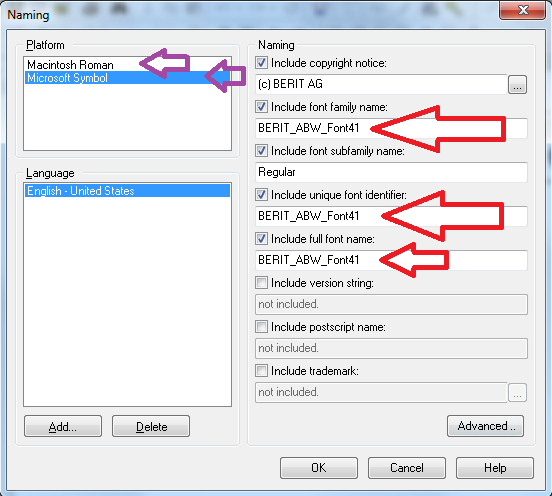
Platform list (menu Format →Platform Manager) should include at least Microsoft Symbol, Microsoft Unicode BMP (UCS-2) and Macintosh Roman
-
Name of the font (full font name) should be the same as the file name and should be the same for all platforms, see menu Format → Naming ....
Example of naming properties window:
Font Name Table Consistency Guidelines
Problem Description
TrueType fonts can contain naming records for multiple platforms within the name table. Each record is identified by a combination of:
- Platform ID — 1 = Macintosh, 3 = Microsoft
- Encoding ID — e.g. 0 = Symbol, 1 = Unicode BMP
- Language ID — e.g. 0x0409 = English (US)
- Name ID — the type of name (see table below)
Root Cause of Loading Failures
Font loading failures can occur when the sets of Name IDs differ between platforms. For example:
| Name ID | Description | Macintosh | Microsoft |
|---|---|---|---|
| 0 | Copyright | ✓ | ✓ |
| 1 | Family name | ✓ | ✓ |
| 2 | Subfamily name | ✓ | ✓ |
| 3 | Unique identifier | ✓ | ✓ |
| 4 | Full font name | ✓ | ✓ |
| 8 | Manufacturer | ✗ | ✓ |
| 9 | Designer | ✗ | ✓ |
| 10 | Description | ✗ | ✓ |
| 11 | Vendor URL | ✗ | ✓ |
| 19 | Sample text | ✗ | ✓ |
Some parsers expect symmetry across platforms. When a Name ID exists in the Microsoft platform but has no counterpart in the Macintosh platform, certain font loaders treat the table as inconsistent and reject the font entirely.
Keep Name IDs symmetric
Every Name ID present in the Macintosh platform must also be present in the Microsoft platform, and vice versa.
| ✓ Correct | ✗ Incorrect |
|---|---|
| Mac nid=0,1,2,3,4 | Mac nid=0,1,2,3,4 |
| MS nid=0,1,2,3,4 | MS nid=0,1,2,3,4,8,9,10,11,19 |
Glyph Drawing
Tips for glyph drawing:
-
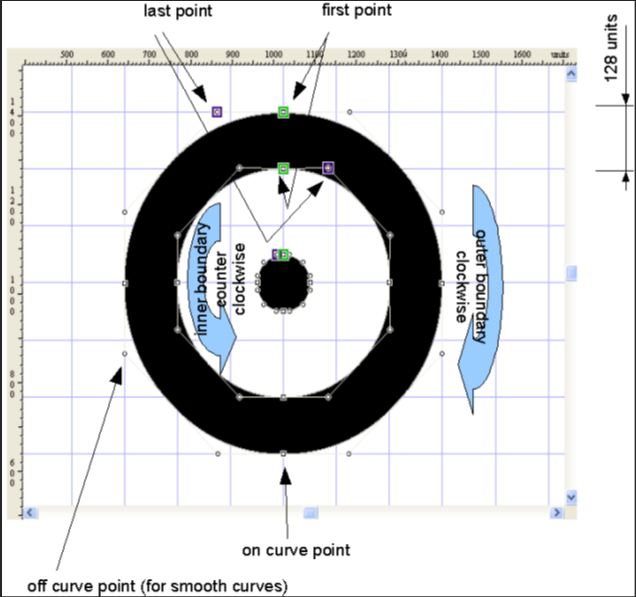
Draw glyphs at least 128 units thick. Thinner doesn't look well when displayed at size < 10 pt
-
Use predefined primitives fromFontCreatortoolbar to construct basic shapes (circle, line ...). Use geometrics transformation (rotate, scale, translate ...) to modify it
-
Align control points to grid 128 x 128 (or 64 x 64)
-
Don't forget check glyphs (see menuFont → Validate). Frequently problems are contour with wrong direction and intersecting edges. Repair it – change direction in right-click menu or functionUnion/Intersect/Exclusivecontours
Example of Glyph
Glyph width
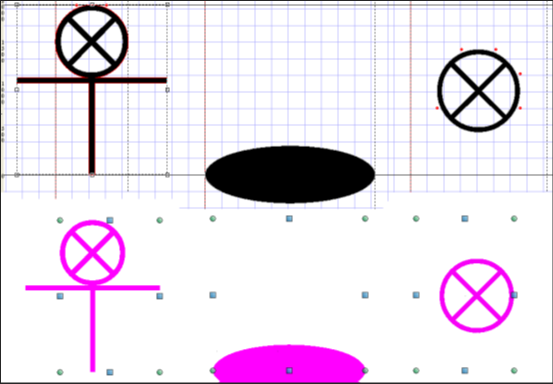
The glyph width is calculated different way in MicroStation and in the other clients.
Character width in MicroStation is calculated as distance from the left glyph bearing to the right glyph bounding:
-
MicroStation computes the anchor point in horizontal direction from actual glyph width. It completely ignores the right bearing.
-
LIDS Explorer works correctly with the bearings.
-
Most important is, that if you want to have same look of symbols in LIDS Edit and LIDS Explorer, you must combine rules for both clients – it means have right bearing equal with right bounding.
-
So, if you want anchor point to be right part of the glyph:
-
set justification to right center – AnchorPointX = 1 AnchorPointY = 0.5
-
set left bearings to 0
-
set right bearing = width of the glyph
-
Glyph height
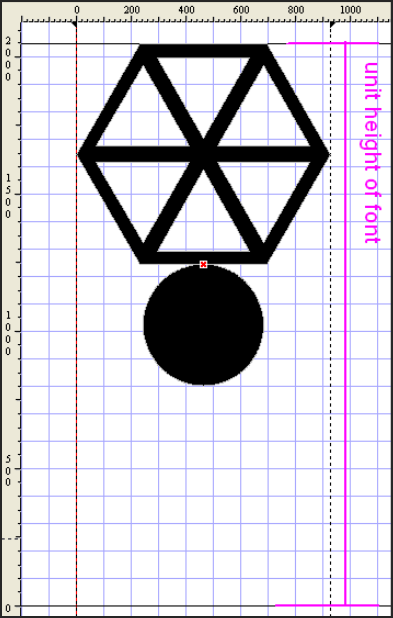
Basic (unit) font height is calculated as height of the 'A' character (or the first one if missing). The other glyphs in the font shouldn’t be bigger than this glyph.
Problems with glyphs
Glyph as symbol in TTF has specific problem – leave first glyph (index 0 or $0000 in Hex) empty. Most of the libraries have a problem with glyph on this position, as it’s reserved for the not printable new line character. Theoretically, font can contain over 65000 glyphs, practically is recommended fill up maximum 100 glyphs.
Glyph must be mapped into any char (or chars) from charset (see menuFormat → Mappings ...).
MicroStation and LIDS Explorer can have problems with some char code ranges. It has been verified that range between 33 and 126 can be used. It is necessary to map glyphs into usual chars (such as !#+–*/ signs, digits, uppercase chars and lowercase chars).
-
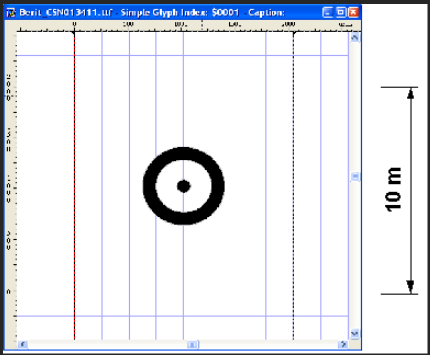
Center position of each glyph is at coordinate [1024, 1024]. If property align in metadata definition for feature type is [center, center] (usually case), this coordinate is reference point for placing symbol.
-
The drawing of glyph can exceed bounding box [0..2048, 0..2048], but it's not recommended, because of problem rendering on some devices (plotters ...).
-
The best is filling whole 2048 x 2048 px area.
-
Size in meters from metadata is related to height 2048.
Tips for migration from LIDS 6
When creating single symbol, it is necessary to take original symbol drawing in RSC into consideration. Especially its size (was the bounding box filled by symbol completely or not?) and reference point (on what position of bounding box the reference point was?).
The size and reference point for symbol in TTF must be modified according to this.
Example:
LIDS 6 definition – the reference point is in the center of bounding box; metadata definition contains center-center and symbol height 2.0:

Corresponding symbol in TTF – metadata definition contains center-center and symbol height 3.34:

When enlarging symbol, also drawing width will be enlarged in appropriate rate. It can lead to customer's requirement to thin symbol, i.e. to draw symbol shapes e.g. 96 pixels width.
-
Arial font is used by default when migrating texts and displayable attributes. It can look too thick.
-
For most of fonts their light version exist (e.g. Arial Light or Swiss 721 Lt BT ). In metadata their logical name (displayed in MicroStation) must be used.
Example: Font in model.xml.
<se:Font>
 <se:SvgParameter name="font-family">Swis721 Lt BT</se:SvgParameter>
</se:Font>
Installation of TTF in LIDS
There are two ways of installation TTF into LIDS.
Server based installation
The font is placed in resources directory of LIDS Application Server and referenced from resource.xml metadata file. LIDS clients then download TTF file from application server and store the files in the client cache. This is recommended way of fonts installation as they can be centrally managed and distributed.
Example: Resource.xml for server based installed TTF.
 <ber:symbolFontArray>
   <ber:symbolFont id="ber_LIDSdemo" name="ber_LIDSdemo">
     <ber:formatArray>
       <ber:format name="ttf" file="ber_LIDSdemo.ttf" />
     </ber:formatArray>
   </ber:symbolFont>
 </ber:symbolFontArray>
After any TTF update, refresh resource timestamp by LIDS Application Server Console. Then all LIDS clients update their local copies of TTF in the cache.
Client based installation
The font is only registered in resource.xml without physical reference to TTF file. Then it must be installed into operating systems of all clients and application server computers.
Fonts should be installed into operating system in a standard way. On Windows you can just copy fonts manually into %Windows%\Fonts directory. You should rather use Windows Explorer as some of file managers don't work properly in this case.
If a font is installed both in the operating system and registered in the LIDS Application server resources, it’s read from the local operating system installation.
After replacing an old font with a new one (installation into operating system), it is necessary to reboot the PC. Otherwise, the change won’t be detected by LIDS Explorer.
Example: Resource.xml for client based installed TTF.
<ber:symbolFontArray>
   <ber:symbolFont id="ber_LIDSdemo" name="ber_LIDSdemo">
     <ber:formatArray>
       <ber:format name="ttf"/>
     </ber:formatArray>
   </ber:symbolFont>
 </ber:symbolFontArray>